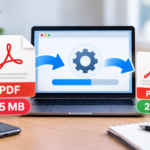
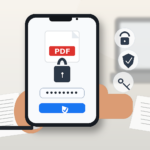
Sending large files via email can become complicated when attachments, videos, PDFs, or folders exceed the limits of email services. In this guide, we will see how to overcome the 25 MB limit, which tools to use, and how to share large files securely.
Sending large files via email may seem like a simple task until the message gets blocked because the attachment exceeds the allowed limit. This often happens with videos, high-resolution photos, very large PDFs, compressed folders, presentations, work documents, or files received from smartphones and computers. Many email services do not allow sending attachments that are too large as traditional files. In such cases, the email may fail to send, bounce back with an error, or be automatically transformed into a message with a link to the file uploaded on the cloud.
Summary
In this guide, we will look at how to send large files via email beyond 25 MB, which methods to use with Gmail, Outlook, Apple Mail, and external services, when it is worth compressing files, and how to share large documents more securely.
Helpful note: the attachment limit does not depend only on your email service. The recipient can also have different limits on their account or mail server. For this reason, when a file is large, it is often better to send a secure link instead of attaching the document directly.
Why you can’t send large files via email
When an attachment is too large, the email service may block sending to avoid overly heavy messages, delivery issues, or excessive space consumption. The limit can apply to a single file or to the total message size, so multiple small attachments can still exceed the allowed threshold.
The files that most often cause problems are:
videos recorded with smartphones;
high-resolution photos;
compressed folders in ZIP format;
PDFs with many images or scans;
presentations with photos and graphics;
audio files;
backups or data exports;
graphic or creative documents;
multiple attachments sent in the same message.
In these cases, the solution is not always “try again.” If the file exceeds the limit, you need to change the method: compress, upload to cloud, use a link, or resort to a file transfer service.
What is the email attachment limit
The attachment limit varies based on the mail service. Gmail, for personal accounts, uses a 25 MB limit for attachments and, if the file exceeds this size, automatically adds a Google Drive link to the message instead of attaching the file directly.
Outlook.com also specifies a 25 MB limit per message and suggests using OneDrive when you need to share larger files. Apple, instead, offers Mail Drop, a feature that allows sending large attachments via iCloud up to 5 GB. In practice, when the file exceeds 25 MB, it is better to think of the email not as a container for the file, but as a message containing the secure link to download it.
What happens when a file exceeds 25 MB
When you try to attach a file that is too large, various things can happen. It depends on the service you use and how you are sending the message. You might see:
an error during the attachment upload;
a message warning that the file is too large;
an offer to upload the file to the cloud;
automatic transformation of the attachment into a link;
the email failing to send;
the email bouncing back after sending;
the recipient unable to receive or download the file.
The problem becomes more frequent when the file is large and the recipient uses a mail service with lower limits or an almost full mailbox.
Method 1: use Google Drive with Gmail
If you use Gmail, Google Drive is one of the most convenient methods to send large files. When a file exceeds the attachment limit, Gmail can upload it to Drive and automatically insert a link into the message. The general process is this:
open Gmail;
create a new message;
attach the file or use the Google Drive icon;
if the file is too large, upload it to Drive;
insert the link into the message;
check access permissions;
send the email to the recipient.
Before sending, Gmail can check if the recipient has access to the file. If not, it may ask you to change the permissions. This is an important step: if the link is too restricted, the recipient won’t be able to open the file; if it’s too open, you risk sharing the document with more people than necessary.
Method 2: using OneDrive with Outlook
If you use Outlook or a Microsoft account, OneDrive is the most natural solution to share large files. Instead of attaching the document directly, you can upload it to OneDrive and send a link within the email. The general process is this:
upload the file to OneDrive;
open Outlook;
create a new message;
insert the file as a OneDrive link or copy the sharing link;
set who can open the file;
choose whether the recipient can only view or also edit;
send the email.
This method is especially useful for work files, shared documents, presentations, PDFs, and folders that need to be updated or downloaded by the recipient.
Method 3: using Mail Drop with iPhone, iPad, and Mac
If you use Apple devices, Mail Drop allows you to send large attachments via iCloud. The file is not sent as a traditional attachment, but is temporarily uploaded to iCloud; the recipient receives a link to download it. This works conveniently when you need to send videos, photos, documents, or large files from iPhone, iPad, or Mac. The process may vary depending on the device, but generally:
open the Mail app;
create a new message;
attach the large file;
if available, choose Mail Drop when prompted;
complete the message;
send the email;
the recipient will receive the link to download the attachment.
Mail Drop is useful because it avoids directly overloading the email message. However, even in this case, you need to consider the type of document and the recipient: for very confidential files, always check if the method is suitable.
Method 4: using WeTransfer or similar services
WeTransfer and similar services allow you to upload large files and generate a link to send to the recipient. They are widely used when you need to transfer videos, images, folders, graphic materials, or documents that are too large for email. The typical workflow is as follows:
open the file transfer service;
upload one or more files;
enter the recipient’s email or generate a link;
add a message if necessary;
send or copy the link;
notify the recipient that the file is available.
These tools are convenient, but they are not always the best choice for sensitive files. Before uploading confidential documents, contracts, personal data, or company files, check the terms, link expiration, available protection, and reliability level of the service.
Method 5: using Dropbox, iCloud Drive, or other cloud services
Besides Google Drive, OneDrive, and Mail Drop, you can also use Dropbox, iCloud Drive, or other cloud services. The principle is always the same: the file is uploaded online and the email contains only the access link. This method is useful when:
the file is too large to attach;
you need to share an entire folder;
multiple people need to access the same material;
you want to update the file without sending a new email;
you want to control permissions and accesses;
the recipient should download the file whenever they prefer.
When sharing a cloud link, always check the permissions: not everyone should be able to modify, download, or forward the file. In many cases, just allowing viewing or downloading is enough.
Method 6: compress files and folders before sending
Compressing files and folders can help reduce the attachment size, but it’s not always enough. It works better with folders full of documents, text files, or materials not already compressed. It works less effectively with videos, JPG photos, already optimized PDFs, or archives that are already compressed. You can compress:
folders with many documents;
text files;
presentations;
collections of non-optimized images;
materials to send in bulk.
The most common format is ZIP, readable by almost all operating systems. After compression, check the final size: if it remains above the email limit, it’s better to use a cloud link or a transfer service.
Method 7: reduce the PDF size before sending
PDFs can become very large when they contain scans, high-resolution images, signatures, charts, or many pages. Before sending them, you can try to reduce the file size. You can act in several ways:
remove unnecessary pages;
reduce image quality only if the text remains legible;
avoid overly heavy scans;
use black and white when color is not needed;
compress the PDF with a reliable tool;
split the document if it should not be sent all together.
If the PDF contains multiple documents collected in the same file, the guide on how to merge multiple PDFs from a smartphone, might also be useful, so you can create a single, more organized document before sending.
Sending large files from a smartphone
Many large files originate directly from smartphones: videos recorded with the camera, high-quality photos, scanned documents, PDFs generated by apps, audio recordings, or presentations received via chat. From a smartphone, you can send large files in various ways:
uploading them to Google Drive;
using iCloud Drive or Mail Drop on iPhone;
sharing them via OneDrive;
using Dropbox or similar services;
generating a download link;
reducing the file size first;
converting or compressing images and PDFs.
If you start from images or photographed documents, you can also read the guide on how to convert images to PDF.
Sending large videos via email
Videos are among the hardest files to send via email because they can quickly exceed attachment limits. Even a short video recorded in high quality can weigh tens or hundreds of megabytes. To send a large video, the most practical solutions are:
uploading it to Google Drive, OneDrive, iCloud Drive, or Dropbox;
sending a sharing link;
using a file transfer service;
reducing the video resolution if maximum quality is not needed;
cutting unnecessary parts;
compressing the video with a suitable tool.
Avoid sending large videos as traditional attachments: they often fail to send, don’t arrive, or take up unnecessary space in the mailbox.
Sending large folders via email
Email does not always allow you to directly attach a folder. In many cases, you first have to compress it into ZIP or upload it to a cloud service and share the link. The tidiest solution depends on the content:
if the folder contains a few small files, you can compress it as ZIP;
if it contains many files or heavy materials, it’s better to use a cloud link;
if the files are confidential, check permissions and access;
if the recipient needs to download everything, create a shared folder;
if they only need to see some documents, share only those necessary.
Before sending a folder, rename it clearly and remove unnecessary files, drafts, old copies, or documents the recipient should not see.
Sending a link instead of an attachment
When the file is large, a link is often the best solution. Instead of physically attaching the file to the email, you upload it to a cloud service and insert a link in the message to open or download it. The advantages are many:
the email stays light;
the file can be much larger;
you can update the document without resending everything;
you can revoke access;
you can choose who can view or edit;
you can share entire folders;
you reduce the risk that the message will be rejected.
The disadvantage is that you must manage permissions well. A link that is too open can expose the file to unintended people, while a link that is too restricted may prevent the recipient from accessing it.
How to properly set link permissions
When sharing a file via link, always check who can open it and what they can do. This setting is more important than just sending the email. Usually, you can choose from options like:
only specific people;
anyone with the link;
view only;
ability to comment;
ability to edit;
link expiration, if available;
download blocking, if supported by the service.
For confidential documents, avoid the “anyone with the link” option unless it is truly necessary. It is better to share the file only with the recipient’s email address.
How to protect confidential files before sending
If the file contains personal data, signatures, contracts, tax documents, health information, or company material, you need more than just consider the attachment size. You must also evaluate the content’s security. Before sending it:
check that the recipient is correct;
remove unnecessary pages or files;
use a reliable channel;
set limited permissions on the link;
avoid unknown services for sensitive documents;
do not send passwords and files in the same message;
The choice of method depends on the type of file, size, and confidentiality level.
Situation
Recommended method
When to use it
Files just over 25 MB
Google Drive, OneDrive or cloud services
When the attachment slightly exceeds the email size limit
Very large video
Cloud link or transfer service
When the file is too large for traditional attachments
Confidential PDF
Password + link with restricted permissions
When it contains personal data, signatures, or important documents
Folder with many files
ZIP or shared cloud folder
When you need to send multiple documents together
High-resolution photos
Cloud or compression
When you want to maintain quality without overloading the email
Non-sensitive file to send quickly
Service like WeTransfer
When a simple and temporary transfer is needed
Shared work document
Cloud link with permissions
When the recipient needs to view or collaborate on the file
Mistakes to avoid when sending large files
Sending large files is simple, but some mistakes can cause delivery, access, or security issues.
Insisting on traditional attachments: if the file exceeds the limit, it’s better to use a link.
Sending files and passwords in the same message: for protected documents, use separate channels.
Not checking permissions: the recipient may not be able to open the file.
Sharing overly open links: be cautious with confidential documents.
Not verifying the final size: multiple small attachments can still exceed the limit.
Using random services for sensitive files: always consider privacy and reliability.
Not renaming files: confusing names can create errors or wrong sends.
Forgetting the link expiration: some services make the file available only for a limited time.
How to write the email when sending a large file
When sending a file via link, it’s advisable to write a clear message. The recipient needs to understand what the link contains, if they need to download the file, by when they should do it, and if there are any special instructions. You can use a simple formula:
Hi, I’m sending you the link to download the file. The document is too large to attach directly to the email. Let me know if you’re able to open it properly.
For work files or important documents, also include the file name, content type, and any link expiration.
Privacy: what to check before sending large files
Before sending a large file, especially if it contains personal or professional documents, always check the contents. Large files often include more material than necessary and may contain information you didn’t intend to share. Check for:
unnecessary documents;
drafts or old versions;
personal data;
signatures;
identity documents;
tax information;
internal files;
file names that are too descriptive;
shared folders with overly broad permissions.
To reduce risks, send only what is really necessary and use permissions consistent with the recipient.
In summary
To send large files via email exceeding 25 MB, the best solution is almost never to force the traditional attachment. It is more practical to upload the file to a cloud service, use Google Drive, OneDrive, Mail Drop, Dropbox, WeTransfer or similar tools and send a secure link to the recipient. The choice depends on the type of file: for videos and large folders a link is better; for PDFs and confidential documents it is advisable to check permissions, passwords, and sending channel; for photos and non-sensitive materials a quick transfer service may suffice. Before sending, always check file size, name, content, recipient, link permissions, and privacy level. A well-sent large file is easier to download, more orderly to archive, and less risky to share.
Frequently asked questions
Can I send large files via email over 25 MB?
Yes, but often not as a traditional attachment. You can upload the file to Google Drive, OneDrive, iCloud Drive, Dropbox, or a file transfer service and send the link via email.
Why does Gmail not allow me to attach a large file?
Gmail has a limit for attachments. If the file exceeds the allowed size, it can be uploaded to Google Drive and included in the email as a link instead of as a direct attachment.
How to send a large video via email?
The best solution is to upload the video to a cloud service or a file transfer platform and send the link to the recipient. Alternatively, you can reduce the video size before sending.
How to send a large folder via email?
You can compress it into a ZIP file if it is not too large, or upload it to the cloud and share the link. For very large folders, the link is almost always more practical.
Is it safe to use WeTransfer or similar services?
It depends on the type of file and the chosen service. For non-sensitive documents it can be a convenient solution; for confidential files it is better to consider permissions, protections, and reliability of the service.
Is it better to attach the file or send a link?
For small files, an attachment is fine. For large files, folders, videos, and shared documents, the link is often more practical and reduces the risk of the email being blocked.
How to protect a large file before sending it?
You can use a password, limit link permissions, share only with specific people, and avoid sending the file and password in the same message.
The recipient can’t open the link: what should I do?
Check the sharing permissions, verify that the recipient’s email address is correct, and try setting access for that person only or generating a new link.
{
“@context”: “https://schema.org”,
“@type”: “FAQPage”,
“mainEntity”: [
{
“@type”: “Question”,
“name”: “Posso inviare file pesanti via email oltre i 25 MB?”,
“acceptedAnswer”: {
“@type”: “Answer”,
“text”: “Sì, ma spesso non come allegato tradizionale. Puoi caricare il file su Google Drive, OneDrive, iCloud Drive, Dropbox o un servizio di trasferimento file e inviare il link via email.”
}
},
{
“@type”: “Question”,
“name”: “Perché Gmail non mi fa allegare un file grande?”,
“acceptedAnswer”: {
“@type”: “Answer”,
“text”: “Gmail ha un limite per gli allegati. Se il file supera la dimensione consentita, può essere caricato su Google Drive e inserito nell’email come link invece che come allegato diretto.”
}
},
{
“@type”: “Question”,
“name”: “Come inviare un video pesante via email?”,
“acceptedAnswer”: {
“@type”: “Answer”,
“text”: “La soluzione migliore è caricare il video su un servizio cloud o su una piattaforma di trasferimento file e inviare il link al destinatario. In alternativa puoi ridurre il peso del video prima dell’invio.”
}
},
{
“@type”: “Question”,
“name”: “Come inviare una cartella pesante via email?”,
“acceptedAnswer”: {
“@type”: “Answer”,
“text”: “Puoi comprimerla in ZIP se non è troppo grande, oppure caricarla su cloud e condividere il link. Per cartelle molto pesanti, il link è quasi sempre più pratico.”
}
},
{
“@type”: “Question”,
“name”: “È sicuro usare WeTransfer o servizi simili?”,
“acceptedAnswer”: {
“@type”: “Answer”,
“text”: “Dipende dal tipo di file e dal servizio scelto. Per documenti non sensibili può essere una soluzione comoda; per file riservati è meglio valutare permessi, protezioni e affidabilità del servizio.”
}
},
{
“@type”: “Question”,
“name”: “Meglio allegare il file o inviare un link?”,
“acceptedAnswer”: {
“@type”: “Answer”,
“text”: “Per file piccoli va bene l’allegato. Per file pesanti, cartelle, video e documenti condivisi, il link è spesso più pratico e riduce il rischio che l’email venga bloccata.”
}
},
{
“@type”: “Question”,
“name”: “Come proteggere un file pesante prima di inviarlo?”,
“acceptedAnswer”: {
“@type”: “Answer”,
“text”: “Puoi usare una password, limitare i permessi del link, condividere solo con persone specifiche e non inviare file e password nello stesso messaggio.”
}
},
{
“@type”: “Question”,
“name”: “Il destinatario non riesce ad aprire il link: cosa devo fare?”,
“acceptedAnswer”: {
“@type”: “Answer”,
“text”: “Controlla i permessi di condivisione, verifica che l’indirizzo email del destinatario sia corretto e prova a impostare l’accesso solo per quella persona oppure a generare un nuovo link.”
}
}
]
}
Per fornire le migliori esperienze, utilizziamo tecnologie come i cookie per memorizzare e/o accedere alle informazioni del dispositivo. Il consenso a queste tecnologie ci permetterà di elaborare dati come il comportamento di navigazione o ID unici su questo sito. Non acconsentire o ritirare il consenso può influire negativamente su alcune caratteristiche e funzioni.
Funzionale
Always active
L'archiviazione tecnica o l'accesso sono strettamente necessari al fine legittimo di consentire l'uso di un servizio specifico esplicitamente richiesto dall'abbonato o dall'utente, o al solo scopo di effettuare la trasmissione di una comunicazione su una rete di comunicazione elettronica.
Preferenze
L'archiviazione tecnica o l'accesso sono necessari per lo scopo legittimo di memorizzare le preferenze che non sono richieste dall'abbonato o dall'utente.
Statistiche
L'archiviazione tecnica o l'accesso che viene utilizzato esclusivamente per scopi statistici.L'archiviazione tecnica o l'accesso che viene utilizzato esclusivamente per scopi statistici anonimi. Senza un mandato di comparizione, una conformità volontaria da parte del vostro Fornitore di Servizi Internet, o ulteriori registrazioni da parte di terzi, le informazioni memorizzate o recuperate per questo scopo da sole non possono di solito essere utilizzate per l'identificazione.
Marketing
L'archiviazione tecnica o l'accesso sono necessari per creare profili di utenti per inviare pubblicità, o per tracciare l'utente su un sito web o su diversi siti web per scopi di marketing simili.