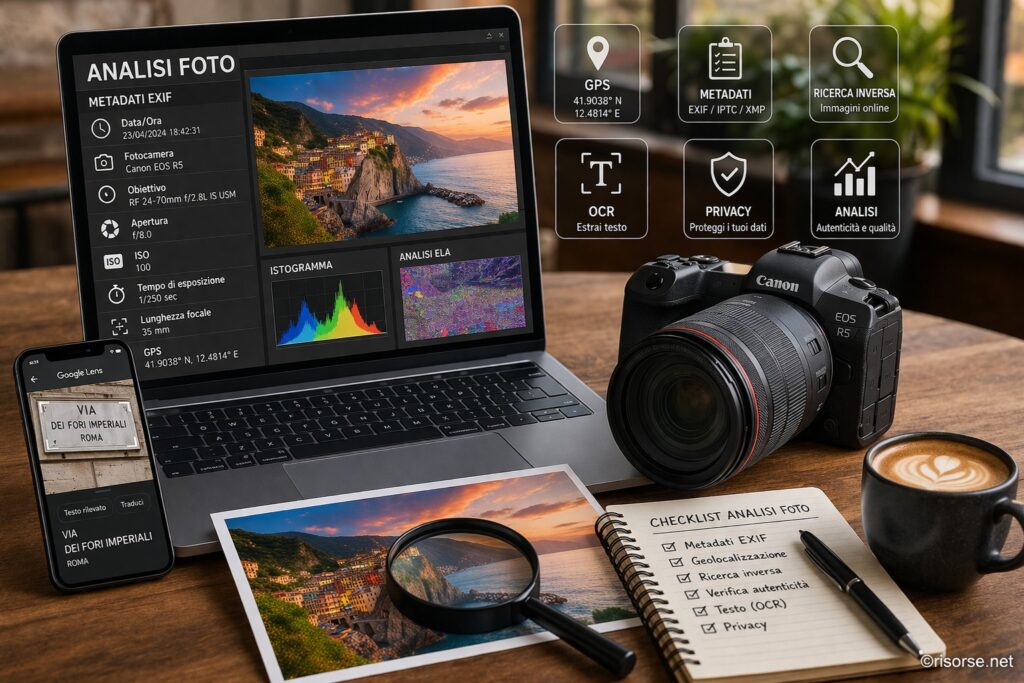
How to analyze a photo: metadata, location, text, and hidden information
Every photo contains much more information than it seems: GPS location, technical data, hidden text, and device details. In this comprehensive guide, we explore how to professionally analyze a photo, which tools to use, and how to protect your privacy before sharing images online.
Analyzing a photo today means going beyond what is visible. Every photographic file is a container of data: visual information, technical metadata, geographic coordinates, traces of edits, and even hidden textual content. These elements can be useful in many contexts: fact-checking, digital security, marketing, investigative journalism, forensic photography, and everyday use. In this comprehensive guide, we see how to analyze a photo professionally, which tools to use for each specific purpose, how to correctly interpret the obtained data, and how to protect yourself from risks related to the unintentional sharing of images.
Summary
What does it really mean to analyze a photo
A digital photo is never just an image. It is a structured binary file that contains at least three distinct levels of information:
Visual content: what we see, that is the pixels that make up the image
Embedded metadata: technical data written into the file at the moment of shooting or editing
Hidden or derivable data: GPS, digital signatures, editing layers, embedded thumbnails, color profiles
This distinction is fundamental: often the most relevant information is not visible to the naked eye but is embedded in the file in structured formats such as EXIF, IPTC, and XMP.
The three main photographic metadata standards
EXIF (Exchangeable Image File Format): it is the most widespread standard and contains technical shooting data, such as camera, lens, settings, GPS, date, and time. Born with digital cameras in the 1990s, it is now supported by almost all devices.
IPTC (International Press Telecommunications Council): created for photojournalism, it contains captions, credits, editorial keywords, and copyright information. It is widely used by news agencies and photo archives.
XMP (Extensible Metadata Platform): a more modern XML-based format developed by Adobe. It supports complex metadata and can be embedded in the file or saved as a sidecar file (.xmp). It is widely used by Lightroom and Photoshop.
Understanding which standard contains the information you are looking for is the first step for effective analysis.
Practical analysis: what to check immediately
When you analyze a photo for the first time, there are some immediate high-priority checks you can perform in a few minutes:
Date and time of the shot: verify that they are consistent with the context of the image
GPS geolocation: check if the shooting location is present and plausible
Device used: identify brand, model, and firmware version
Processing software: find out if the photo has passed through editors like Photoshop, Lightroom, or mobile apps
Any texts in the image: extract textual information with OCR
Visual Authenticity: look for artifacts, lighting inconsistencies, or abnormal edges
Reverse image search: check if the image or similar versions already exist online
These seven checks form a basic checklist applicable to any image received from external sources, found online, or attached to official documents.
Quick checklist for photographic fact-checking
Before sharing or publishing a photo you are unsure about, follow this order:
Upload the file to an EXIF viewer and save all available data
Check the EXIF date against the file reception date
If GPS coordinates are present, open them on Google Maps or OpenStreetMap and verify the context
Perform a reverse search on Google Images, TinEye, and Yandex Images
Check if editing software appears in the metadata
Visually analyze the image with an Error Level Analysis (ELA) tool
If there is text in the image, extract it with OCR and verify it separately
How to discover where a photo was taken
If the photo contains GPS data, it is possible to accurately identify the shooting location. This occurs through EXIF metadata, which on modern smartphones is automatically recorded using the integrated GPS module.
Coordinates are expressed in DMS format (degrees, minutes, seconds) or decimal. For example:
DMS: 41° 54′ 13.8″ N, 12° 28′ 53.2″ E
Decimal: 41.9038, 12.4814
Both formats can be entered directly into Google Maps or OpenStreetMap to view the exact point.
Not all photos contain geolocation. The most common causes are:
GPS disabled in camera or smartphone settings
Photo taken indoors, where the GPS signal does not reach
Metadata deliberately removed before sharing
Photo scanned from a paper original
Screenshots, which by definition do not have shooting EXIF data
In the absence of GPS, you can still attempt geolocation through alternative methods:
Visual search for elements: signs, monuments, typical architectures, road signs, texts in specific languages
Reverse image search: Google Lens, TinEye or Bing Visual Search can find identical or similar places already cataloged online
Shadow analysis: direction and length of shadows can help estimate latitude, time of day, and season with tools like SunCalc
Visual context analysis: sky, clouds, light quality, and apparent position of the sun can be compared with historical weather archives
EXIF metadata: comprehensive technical analysis
EXIF metadata is the richest and most important part in analyzing a photo. They allow access to a large set of information, grouped into different categories.
Device data
Make: the manufacturer, such as Canon, Nikon, Apple, Samsung, or Sony
Model: the specific model, like iPhone 15 Pro, Galaxy S24 Ultra, or EOS R5
Software: iOS, Android version or camera firmware
LensMake e LensModel: brand and model of the lens in interchangeable lens cameras
Shooting parameters
ISO: sensor sensitivity; high values often indicate shots in low light conditions
Aperture (F-stop): f/1.8, f/8, f/16 and so on; indicates depth of field
Exposure time: for example 1/1000 s or 30 s; helps understanding if the photo was taken in motion or at night
Focal length: expressed in millimeters, indicates the lens field of view
White Balance: automatic, daylight, tungsten, or custom
Flash: whether it was used and in which mode
Shooting Mode: automatic, manual, aperture priority, or shutter priority
Exposure Metering Method: matrix, spot, or center-weighted average
Time Data
DateTimeOriginal: date and time of the shot, essential for fact-checking
DateTimeDigitized: when the file was digitally created
DateTime: when the file was last modified
OffsetTime: timezone when the shot was taken, if available
Warning: the EXIF date can be manually altered. A discrepancy between DateTimeOriginal e DateTime may indicate post-processing or a subsequent file modification.
GPS Geographical Data
GPSLatitude e GPSLongitude: precise coordinates
GPSAltitude: altitude in meters
GPSSpeed: device speed at the time of the shot
GPSDirection: direction in which the camera was pointed
GPSTimestamp: UTC time of the shot recorded by the GPS
Image data
Resolution: width and height in pixels
Color depth: 8 bit, 16 bit per channel, and so on
Color space: sRGB, AdobeRGB, P3
Orientation: position in which the device was held at the time of the shot
EXIF Thumbnail: thumbnail embedded in the file, which in some cases can differ from the main image if it has been modified
Checking if a photo has been modified or is authentic
One of the most critical uses of photo analysis is understanding whether an image is authentic or has been altered. This skill is useful not only for journalists and fact-checkers but also for lawyers, companies, and anyone working with digital evidence.
Metadata signals
Editing software in metadata: entries like Adobe Photoshop, GIMP, Lightroom, or mobile retouching apps indicate that the file has passed through an editor
Date discrepancies: if DateTimeOriginal is different from DateTime, the file was modified after the shot
Inconsistent thumbnail: the EXIF thumbnail may show the original version of the image, different from the one that was then modified and saved
Complete absence of metadata: it is not always a negative signal, but in some contexts it can indicate that the file has been exported, reprocessed, or deliberately cleaned before sharing
Inconsistent metadata: for example, shooting parameters incompatible with the declared camera model
ELA is a technique that analyzes differences in JPEG compression levels within the same image. When a photo is edited and then saved again, the altered areas may show different compression levels compared to the rest.
In practice:
The image is recompressed at a known level, for example quality 75%
The difference between the original and the recompressed version is amplified and displayed
Areas with marked differences may indicate manipulations or local retouching
Well-known tools for ELA are FotoForensics, Izitru, and Tungstène.
Analysis of visual inconsistencies
Even without specialized tools, a trained eye can spot various suspicious signs:
Inconsistent shadows: direction or hardness of shadows incompatible with a single light source
Unnatural edges: uneven blurring around objects, typical of a cutout or insertion
Clone stamping: areas with repeated patterns that may reveal the use of the clone stamp
Uneven quality: very sharp zones next to others unnaturally blurred
Anomalous proportions: objects or people with implausible sizes relative to the context
Localized compression artifacts: pixelation blocks in specific areas of the image
Reverse image search to verify origin
An image may be authentic, but used in the wrong context. A real photo could be presented as current when it actually dates back ten years. Reverse search allows finding the earliest appearances of the image online and better contextualizing it.
The most useful engines to use in combination are:
Google Images: very extensive and useful for content in Italian and English
TinEye: specialized in the history of online appearances
Yandex Images: particularly effective on some international content and facial recognition
Bing Visual Search: useful for products, faces, and commercial contexts
Reverse image search: practical guide
Reverse image search is one of the most powerful tools in photographic analysis. It can help you:
Find the original source of an image
Discover unauthorized uses of your photos
Verify if a person or profile uses images taken elsewhere
Find high-resolution versions of the same image
Identify unknown products, places, or objects
How to do an effective reverse search
Google Lens: upload the image or take a photo directly from the app. It also works well on crops, useful if you want to analyze just a specific element
Google Images from desktop: click the camera icon and upload the file or paste the image URL
TinEye: upload the image and check the list of pages where it appeared, often sortable by date
Yandex: particularly effective for faces, places, and international images
Advanced reverse search strategies
Search by cropping: if the image contains multiple elements, crop only what interests you
Preliminary editing: sometimes it’s worth adjusting contrast, cropping, or simplifying the image before the search
Combined use of multiple engines: each engine has a different index and results can vary greatly
How to extract text from a photo (OCR)
Images often contain important textual information that is useful to extract and make reusable in digital format. This process is called OCR (Optical Character Recognition) and today achieves very high levels of accuracy thanks also to artificial intelligence.
When OCR on a photo is needed
Screenshots of conversations or documents
Photographed documents, such as contracts, receipts, or identity cards
Road signs, signboards, license plates, and notices
Book or magazine covers
App and software screenshots
Tables and charts found in presentations or reports
Free and professional OCR tools
Google Lens: integrated in Android and also available on iPhone, it recognizes text in many languages and allows quick copying
Tesseract OCR: open source engine used in many professional applications, supporting over 100 languages
Adobe Acrobat: useful for complex documents and more structured conversions
ILovePDF e SmallPDF: convenient online tools for OCR and PDF conversion
Microsoft Lens: free app that enhances document photos and converts them to Word, PDF, or OneNote
Multimodal AI models: tools like ChatGPT, Claude, or Gemini can read and transcribe text from images with good accuracy
If the photo contains text in non-Latin characters, such as Chinese, Japanese, Korean, Arabic, or Cyrillic, there are specific solutions:
Google Lens: supports major writing systems and also includes real-time translation
Baidu OCR: particularly effective for simplified and traditional Chinese
Naver OCR: effective for Korean
Computer Vision APIs: Google Cloud Vision, AWS Textract, and Azure Computer Vision support many languages and complex texts
Photo Analysis with Artificial Intelligence
Artificial intelligence has significantly expanded the possibilities of photo analysis. Modern computer vision models can extract information that traditional tools could not obtain with the same ease.
What AI Models Can Do with a Photo
Describe the content: identification of objects, people, animals, environments, and actions
Recognize brands and logos: useful in marketing and visual monitoring
Estimate quality and composition: sharpness, exposure, scene structure
Classify the image: landscape, portrait, product, document, and so on
Detect sensitive content: nudity, violence, or other problematic content
Support visual consistency control: in some cases, they help highlight anomalies or inconsistencies
AI Tools for Photo Analysis
Google Cloud Vision API: object, text, place recognition, and image properties
AWS Rekognition: Amazon’s solution for image and video analysis
Azure Computer Vision: advanced OCR, automatic descriptions, and content moderation
ChatGPT, Claude, and Gemini: multimodal models useful for descriptive analysis and contextual interpretation of images
Privacy: risks you take by sharing a photo
Every photo shared online can contain sensitive information that jeopardizes your privacy or that of the people depicted. Understanding these risks is essential for more conscious use of digital images.
Main risks
Unintentional sharing of location: GPS data can reveal where you live, work, or spend time
Device tracking: phone model and other technical data can facilitate identification and profiling
Facial recognition: even without metadata, faces in images can be identified by automated systems
Exposure of background information: documents, license plates, house numbers, home interiors, and other visible details can reveal much more than expected
Rights-related issues: metadata and credits can have legal and professional relevance
Commercial profiling: platforms and services can analyze images for advertising or statistical purposes
How to protect yourself before sharing
Systematically remove metadata: especially before publishing images on public platforms
Turn off GPS in photos: this is the most effective preventive measure on smartphones
Use dedicated apps: some tools remove metadata with a single touch
Don’t assume platform behavior: some services remove part of the metadata, others do not, and these policies can change
Photographic analysis for OSINT and investigative journalism
Image analysis has become a core skill also in OSINT (Open Source Intelligence), which is intelligence based on open sources. Specialized organizations have demonstrated how much can be reconstructed by systematically analyzing publicly available photos and videos.
OSINT techniques applied to images
Visual geolocation: identifying the location of a photo by analyzing architecture, vegetation, signage, roads, signs, and distinctive elements
Chronolocation: estimating when a photo was taken by observing solar angle, vegetation, state of the surroundings, vehicles, or products present
Vehicle Verification: license plates, models, and technical details can help identify country, period, or compatibility with a certain scene
Clothing and Context Analysis: uniforms, badges, objects, or equipment can be useful to better place the image
Cross-referencing: comparing elements present in multiple images from different sources
Resources for Deepening Photographic OSINT
Bellingcat
First Draft
InVID / WeVerify
Forensically
Optimize and Compress Images: Professional File Management
Analyzing a photo also means knowing how to properly manage it. Oversized files slow down websites, occupy storage space, and increase loading times on desktop and mobile, directly affecting user experience and SEO.
Photo Formats and When to Use Them
JPEG/JPG: compressed lossy format, ideal for real photographs. Good balance between quality and size, with universal support
PNG: lossless compression, more suited for screenshots, graphics, interfaces, and images with transparency
WebP: modern format with very efficient compression, suitable for the web
AVIF: a very promising format with excellent compression but compatibility still evolving
HEIC/HEIF: widely used in Apple environment, efficient but not always convenient outside that ecosystem
RAW: raw files suitable for professional editing, not for the web
When and How Much to Compress
For the web, general guidelines can be these:
Editorial images: around 150-200 KB for standard sizes
Hero or very wide images: 300-500 KB, if necessary
Thumbnail: 20-50 KB
Product images: 80-120 KB, depending on the level of detail required
There are many tools for photographic analysis. The choice depends on the goal, the type of control required, and your level of technical expertise.
EXIF viewers and analyzers
ExifTool: professional reference for reading and writing metadata in many formats
Jeffrey’s Exif Viewer: highly appreciated web viewer for its simplicity and completeness
ExifPurge: useful for removing metadata in batches
Metapicz: fast online viewer
Authenticity verification tools
FotoForensics: known for online ELA analysis
Forensically: online suite with multiple forensic analysis tools
Ghiro: open source platform for more structured analysis
Izitru: tool aimed at technical image verification
Reverse search tools
Google Lens
TinEye
Yandex Images
Bing Visual Search
OCR tools
Google Lens
Tesseract
Adobe Acrobat
Microsoft OneNote or Microsoft Lens
Editing software with integrated analysis
Adobe Lightroom e Adobe Bridge: full reading of EXIF, IPTC, and XMP
Capture One: advanced image and metadata management
digiKam: very complete open source solution
Photographic analysis for marketing and digital content
In digital marketing, image analysis goes beyond technical verification and becomes a strategic tool to improve quality, consistency, and content performance.
Competitive analysis through images
Studying photos used by competitors helps to understand:
Which photographic style prevails
Which emotions they try to evoke
How products and environments are presented
Which formats dominate across different channels
SEO optimization of images
File name: better descriptive than generic
Alt text: useful for accessibility and SEO context
Dimensions: files that are too heavy can worsen performance
Format: WebP is often preferable on the modern web
Structured markup: in some contexts, it can help with image visibility
UGC: how to analyze and validate user photos
If a brand collects photos from users, before publishing them it should:
Verify authenticity and origin
Check technical quality and readability
Exclude problematic elements or competitor brands
Obtain consent for use
When you really need to analyze a photo: real use cases
This skill is useful in many areas. Here are some concrete scenarios.
Journalism and fact-checking
A journalist receives a photo that would show a news event. Before publishing it, they can check date and location in the metadata, perform a reverse image search to see if the photo has already circulated in other contexts, and analyze any signs of manipulation.
Personal security and defensive OSINT
Anyone wanting to verify the identity of a person met online can use reverse image search on profile pictures and check if they appear on other accounts, sites, or archives.
Professional photographers
A photographer can monitor the circulation of their images, find unauthorized uses, and check how their photos are reused online.
E-commerce and online sales
A seller can verify if images received from a supplier are original, overly compressed, taken from third-party catalogs, or unsuitable for publication.
Legal and insurance fields
In some cases, date, time, location, and technical file history can help confirm or question a reconstruction of events.
Personal use
Even in daily life, photo analysis can be useful: to find the location of an old photo, verify the credibility of an online listing, or check if a lodging image is recent and authentic.
If you just want to do one specific thing
You don’t always need a complete analysis. In many cases, you just want to solve a precise problem. Here’s where to start:
If you want to find the place where a photo was taken, check out guides on geolocation and GPS data
If you want to read EXIF metadata, use a dedicated viewer or dive into the technical guide
If you want extract text from a photo or a screenshot, you need an OCR tool
If you want to remove sensitive data before sharing an image, focus on the privacy and metadata section
If you want to verify if a photo is authentic, combine metadata, reverse search, and visual analysis
Conclusion
A photo is never just an image. It is a structured set of data, technical information, and visual signals that can be analyzed, interpreted, and enhanced. With the right tools, from EXIF viewers to forensic analysis, reverse search to artificial intelligence, it is possible to extract much more information from any image than it seems at first glance.
Knowing how to read these elements means being more aware, safer, and better prepared in the digital world, whether you are a journalist, a photographer, a marketing professional, or simply a curious person.
Frequently Asked Questions
How to analyze a photo online for free?
You can use online EXIF viewers to read metadata, tools like FotoForensics for some forensic checks, Google Lens or TinEye for reverse search, and OCR services to extract text from images.
How to see where a photo was taken?
If geolocation was active when the photo was taken, the GPS data in the EXIF metadata can show the exact location. If there is no GPS, you can try reverse image search or visual analysis of the context.
Are photo metadata dangerous for privacy?
They can be. GPS data can reveal precise locations, while other metadata can provide information about the device, the time, and habits of the person who took the photo.
How to remove metadata from a photo?
You can use dedicated tools like ExifTool, smartphone apps, desktop software, or some built-in operating system functions to remove properties and personal information.
How to extract text from an image?
You can use OCR tools. Google Lens is among the simplest solutions for everyday use, while tools like Tesseract or cloud services may be better suited for advanced needs.
How to tell if a photo has been edited with Photoshop?
Check the EXIF metadata to see if editing software appears, verify any discrepancies between the capture date and modification date, and if necessary, use forensic analysis tools like ELA.
What is the best tool for reading EXIF metadata?
ExifTool is considered a professional reference. If you prefer something more immediate, you can use online viewers or software with a graphical interface like digiKam.
Do photos on social networks retain metadata?
It depends on the platform and the type of sharing. Some services remove part of the metadata, others do not, and policies can change over time. For caution, it is better not to rely automatically on the platform.
How to analyze a photo to verify it is authentic?
The best method is to combine multiple checks: reading EXIF metadata, reverse image search, context verification, and visual analysis of any anomalies.
Per fornire le migliori esperienze, utilizziamo tecnologie come i cookie per memorizzare e/o accedere alle informazioni del dispositivo. Il consenso a queste tecnologie ci permetterà di elaborare dati come il comportamento di navigazione o ID unici su questo sito. Non acconsentire o ritirare il consenso può influire negativamente su alcune caratteristiche e funzioni.
Funzionale
Always active
L'archiviazione tecnica o l'accesso sono strettamente necessari al fine legittimo di consentire l'uso di un servizio specifico esplicitamente richiesto dall'abbonato o dall'utente, o al solo scopo di effettuare la trasmissione di una comunicazione su una rete di comunicazione elettronica.
Preferenze
L'archiviazione tecnica o l'accesso sono necessari per lo scopo legittimo di memorizzare le preferenze che non sono richieste dall'abbonato o dall'utente.
Statistiche
L'archiviazione tecnica o l'accesso che viene utilizzato esclusivamente per scopi statistici.L'archiviazione tecnica o l'accesso che viene utilizzato esclusivamente per scopi statistici anonimi. Senza un mandato di comparizione, una conformità volontaria da parte del vostro Fornitore di Servizi Internet, o ulteriori registrazioni da parte di terzi, le informazioni memorizzate o recuperate per questo scopo da sole non possono di solito essere utilizzate per l'identificazione.
Marketing
L'archiviazione tecnica o l'accesso sono necessari per creare profili di utenti per inviare pubblicità, o per tracciare l'utente su un sito web o su diversi siti web per scopi di marketing simili.