How to remove geolocation and metadata from a photo (complete guide)
Photos can contain hidden data such as GPS location, device information, and personal details. In this guide, we explain how to remove geolocation and EXIF metadata from a photo on Android, iPhone, Windows, and Mac to protect your privacy before sharing images online.
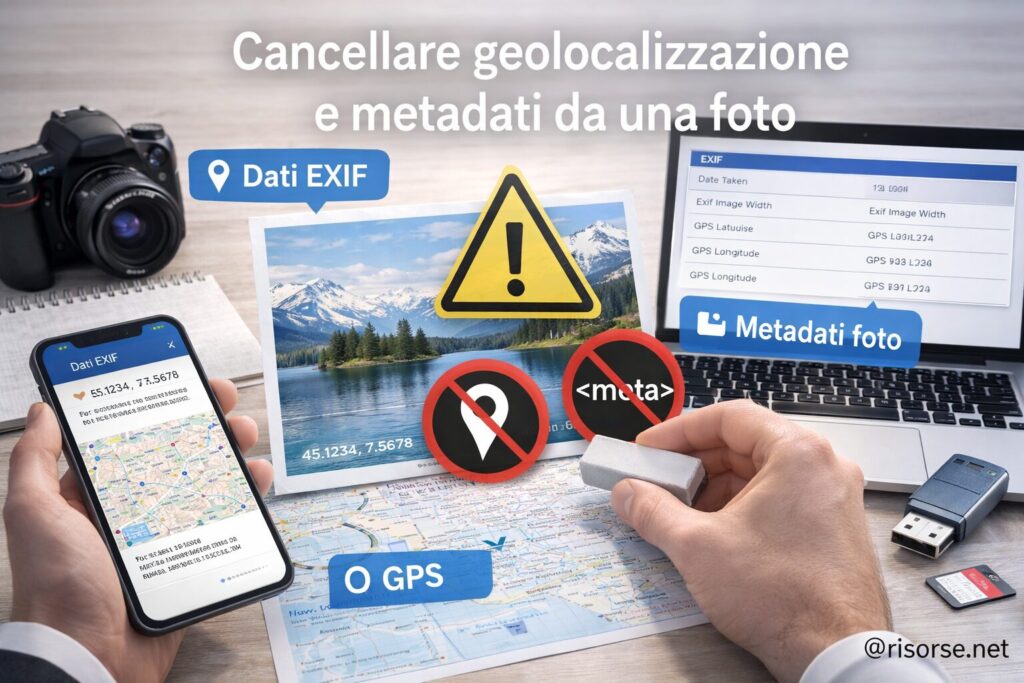
When you take a photo with your smartphone or digital camera, the image contains not only what you see but also a series of hidden information called EXIF metadata. Among these data can be the GPS location, date, device model, and other sensitive information.
Before sharing a photo online, it’s important to know how to remove this data to protect your privacy. In this guide, we’ll see how to delete geolocation and metadata from a photo on any device.
EXIF data may seem harmless, but they can actually reveal very sensitive information. For example:
the exact location of your home
places regularly visited
personal habits
Anyone who has access to the photo could analyze this data and trace back to the location where it was taken. This is the same principle used to: understand where a photo was taken.
How to remove metadata from a photo on a smartphone
Android
On Android, there are several solutions:
disable geolocation in the camera settings
use dedicated apps to remove metadata
share photos via apps that automatically remove data
Many smartphones allow you to edit or remove information directly from the gallery.
iPhone
On iPhone, you can remove the location directly before sharing:
open the photo
tap “Share”
remove the location before sending
You can also completely disable geolocation for the camera from iOS settings.
How to remove metadata from a photo on PC
Windows
On Windows you can remove metadata without additional software:
right-click on the photo
go to “Properties”
select “Details”
click on “Remove Properties and Personal Information”
Mac
On Mac you can use Preview:
open the image
go to “Tools”
view and remove EXIF information
Online tools to remove metadata
There are also online services that allow you to delete EXIF data without installing software:
metadata cleaning sites
image compression tools (often remove data automatically)
Many social networks (like Instagram and Facebook) automatically remove metadata, but this is not an absolute guarantee. Also:
not all platforms do it
original images can retain the data
some information can remain accessible
For this reason, it is always better to remove data before sharing.
When NOT to remove metadata
In some cases metadata can be useful:
organizing personal photos
professional archiving
technical analysis of images
The choice always depends on the use you intend for the photo.
Conclusion
Removing geolocation and metadata from a photo is a simple but essential operation to protect your privacy. Just a few steps are enough to avoid sharing sensitive information unknowingly.
The rule is simple: before publishing or sending a photo, always check what data it contains and, if necessary, remove it.
Frequently Asked Questions
Do photos always contain EXIF data?
Yes, in most cases photos taken with smartphones or cameras contain EXIF metadata.
Is it dangerous to share photos with geolocation?
Yes, because it can reveal the exact location where the image was taken.
Do social media remove metadata?
Many do, but it’s not guaranteed 100%.
How to quickly delete EXIF data?
You can use device settings, built-in software, or online tools.
Per fornire le migliori esperienze, utilizziamo tecnologie come i cookie per memorizzare e/o accedere alle informazioni del dispositivo. Il consenso a queste tecnologie ci permetterà di elaborare dati come il comportamento di navigazione o ID unici su questo sito. Non acconsentire o ritirare il consenso può influire negativamente su alcune caratteristiche e funzioni.
Funzionale
Always active
L'archiviazione tecnica o l'accesso sono strettamente necessari al fine legittimo di consentire l'uso di un servizio specifico esplicitamente richiesto dall'abbonato o dall'utente, o al solo scopo di effettuare la trasmissione di una comunicazione su una rete di comunicazione elettronica.
Preferenze
L'archiviazione tecnica o l'accesso sono necessari per lo scopo legittimo di memorizzare le preferenze che non sono richieste dall'abbonato o dall'utente.
Statistiche
L'archiviazione tecnica o l'accesso che viene utilizzato esclusivamente per scopi statistici.L'archiviazione tecnica o l'accesso che viene utilizzato esclusivamente per scopi statistici anonimi. Senza un mandato di comparizione, una conformità volontaria da parte del vostro Fornitore di Servizi Internet, o ulteriori registrazioni da parte di terzi, le informazioni memorizzate o recuperate per questo scopo da sole non possono di solito essere utilizzate per l'identificazione.
Marketing
L'archiviazione tecnica o l'accesso sono necessari per creare profili di utenti per inviare pubblicità, o per tracciare l'utente su un sito web o su diversi siti web per scopi di marketing simili.