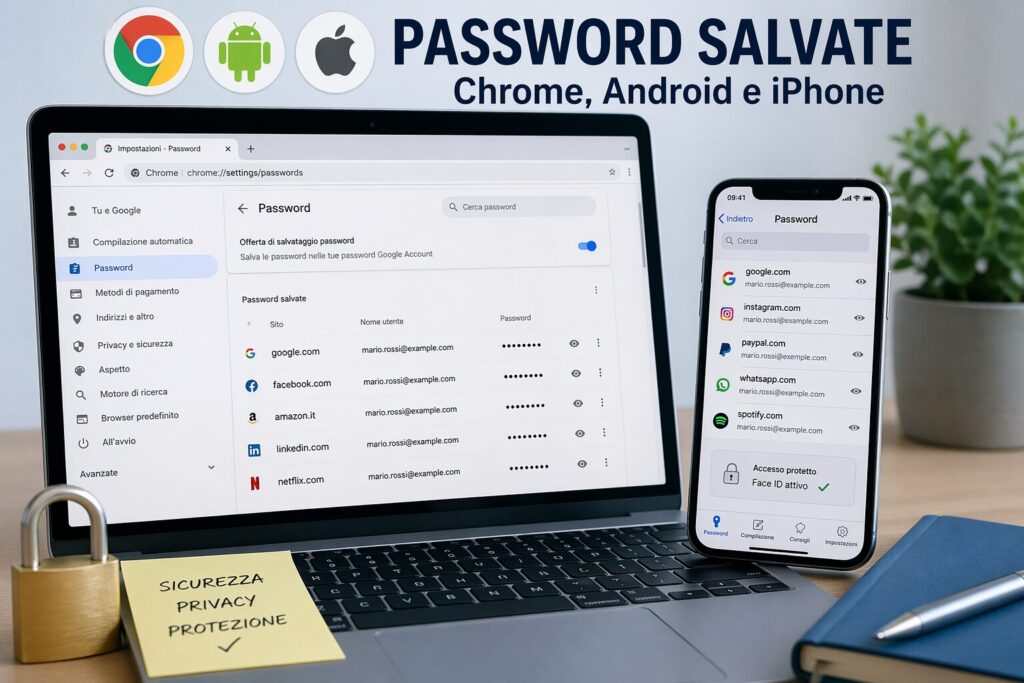
Come vedere le password salvate su Chrome, Android e iPhone
Passwords saved in browsers and smartphones allow quick access to your accounts, but not everyone knows how to view them when needed. In this guide, you’ll learn how to see saved passwords on Chrome, Android, and iPhone in a simple and secure way, avoiding risks to your privacy.
Today we use dozens of accounts across email, social networks, online services, work platforms, and apps. To simplify access, browsers and smartphones automatically save passwords, allowing you to log in without entering them every time. This feature is extremely convenient, but often underestimated. Many users do not know where passwords are saved, how to view them, or how to manage them securely.
Summary
But what happens when you need to recover a saved password? Or want to check which credentials are stored on your device? In this guide, we’ll see how to view saved passwords on Chrome, Android, and iPhone easily, as well as how to manage them without taking risks.
If you have completely forgotten a password, you can also consult the guide on how to recover a forgotten password, especially useful for older systems or specific situations.
Where passwords are saved
Passwords are not saved “randomly” but within systems designed to protect them. Depending on the device, they can be stored in:
browsers (Chrome, Safari, Edge);
synchronized Google or Apple accounts;
integrated password managers;
apps dedicated to credential management.
These systems use encryption to protect the information. However, anyone who has access to the device can still view the passwords if they pass the security checks (PIN, fingerprint, Face ID).
When it might be useful to view saved passwords
There are several situations where accessing saved passwords can be helpful:
you’ve forgotten a password but are still logged in;
you need to access an account from another device;
you want to back up credentials;
you want to check if a password is weak or duplicated;
you are changing device or browser.
Knowing where to find this information can save you a lot of time.
How to view saved passwords on Chrome
From PC
Open Google Chrome;
Go to Settings;
Select Passwords;
Scroll through the list of saved sites;
Click the eye icon next to the password;
Enter your computer password to confirm.
Chrome will show the password in plain text only after authentication, to prevent unauthorized access.
From smartphone (Android and iPhone)
Open Chrome;
Go to Settings → Passwords;
Select the desired site;
Authenticate with fingerprint or Face ID;
View the saved password.
This feature is especially useful when you need to quickly retrieve a credential without resetting it.
How to see saved passwords on Android
Android uses the Google Password Manager, linked to your Google account. This system automatically syncs passwords across devices.
Open Settings;
Go to Google;
Select Manage Google Account;
Go to Security;
Open Password Manager.
Here you can view, edit, or delete all saved passwords.
How to see saved passwords on iPhone
On iPhone, passwords are saved in the iCloud Keychain, an integrated system synchronized with all Apple devices.
Open Settings;
Go to Passwords;
Authenticate with Face ID or passcode;
Select the desired site or app.
The Keychain also allows you to suggest strong passwords and check for any security breaches.
Is it safe to save passwords?
Saving passwords is a convenient choice, but not without risks. If the device is compromised, saved credentials can also be exposed.
The main risks are:
unauthorized access to the device;
malware or spyware;
theft or loss of the smartphone;
use on shared devices.
For this reason, it is essential to adopt some good practices:
always protect the device with a PIN or biometrics;
Keeping the system clean also means protecting saved passwords.
Conclusion
Viewing saved passwords on Chrome, Android, and iPhone is simple and can be very helpful in everyday account management. However, this feature must be used with awareness.
Passwords are among the most sensitive information we have: protecting them means protecting your digital identity. Using secure tools, checking devices, and adopting good security practices is essential to avoid risks and unauthorized access.
Per fornire le migliori esperienze, utilizziamo tecnologie come i cookie per memorizzare e/o accedere alle informazioni del dispositivo. Il consenso a queste tecnologie ci permetterà di elaborare dati come il comportamento di navigazione o ID unici su questo sito. Non acconsentire o ritirare il consenso può influire negativamente su alcune caratteristiche e funzioni.
Funzionale
Always active
L'archiviazione tecnica o l'accesso sono strettamente necessari al fine legittimo di consentire l'uso di un servizio specifico esplicitamente richiesto dall'abbonato o dall'utente, o al solo scopo di effettuare la trasmissione di una comunicazione su una rete di comunicazione elettronica.
Preferenze
L'archiviazione tecnica o l'accesso sono necessari per lo scopo legittimo di memorizzare le preferenze che non sono richieste dall'abbonato o dall'utente.
Statistiche
L'archiviazione tecnica o l'accesso che viene utilizzato esclusivamente per scopi statistici.L'archiviazione tecnica o l'accesso che viene utilizzato esclusivamente per scopi statistici anonimi. Senza un mandato di comparizione, una conformità volontaria da parte del vostro Fornitore di Servizi Internet, o ulteriori registrazioni da parte di terzi, le informazioni memorizzate o recuperate per questo scopo da sole non possono di solito essere utilizzate per l'identificazione.
Marketing
L'archiviazione tecnica o l'accesso sono necessari per creare profili di utenti per inviare pubblicità, o per tracciare l'utente su un sito web o su diversi siti web per scopi di marketing simili.