How to Scan Documents with Your Smartphone: Android, iPhone, and Useful Apps
Scanning documents with your smartphone is useful when you need to digitize receipts, forms, notes, contracts, receipts, or paper pages without using a traditional scanner. In this guide, we will see how to do it with Android and iPhone, which tools to use, and how to obtain readable, organized, and easy-to-share files.
Autore:Anna Bruno |
Pubblicato il: 16 July 2026 |
Categoria:Mobile |
Tag:
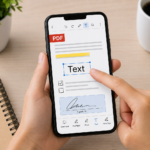
Scanning documents with a smartphone has become one of the most convenient operations in the daily management of files, forms, and paper documents. You no longer need a traditional scanner on your desk: in most cases, the phone’s camera, good lighting, and the right app are enough.
Summary
With Android and iPhone, you can digitize receipts, contracts, notes, receipts, signed documents, notebook pages, letters, certificates, or completed forms. The result can be saved as an image or, more often, as a PDF, a tidier format more suitable for sharing via email, WhatsApp, cloud services, or online portals.
In this guide, we will see how to scan documents with a smartphone, which methods to use on Android and iPhone, which apps can be useful, and which mistakes to avoid to obtain readable and professional scans.
Useful note: a scan done with a smartphone is not always identical to a scan from a flatbed scanner, but for many everyday documents, it is more than sufficient. The final quality mainly depends on lighting, focus, phone stability, and correct cropping of the edges.
When it is convenient to scan a document with a smartphone
Scanning a document with a phone is useful when you need to turn a paper sheet into a digital file. It can be useful to keep a copy, send an attachment, upload a document to a site, or quickly share a page with another person.
It is a practical solution for:
receipts and slips;
paper invoices;
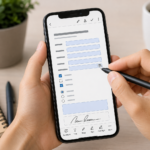
completed and signed forms;
school or university notes;
pages of books or notebooks, when allowed;
contracts and work documents;
certificates and paper communications;
documents to send via email or WhatsApp;
sheets to store in the cloud.
Scanning is preferable to a simple photo when the document must remain readable, orderly, and more similar to a digital page. Scanning apps, in fact, can detect the edges of the sheet, correct perspective, enhance contrast, and save multiple pages in the same PDF.
Difference between photo and scan
A photo is simply a snapshot of the document. A scan, on the other hand, is a photo optimized to become a readable file: the sheet is cropped, aligned, color-corrected, and often saved as a PDF.
The difference is especially noticeable when the document contains text, tables, signatures, or small details. A photo can be crooked, with shadows or visible background. A well-made scan appears cleaner and more suitable to be archived or sent.
In summary:
photo: faster, but less tidy;
scan: cleaner, more readable, and more suitable for documents;
PDF: ideal format for sending and storing one or more pages.
On Android, you can scan documents in various ways. Many phones include built-in functions in the camera, gallery, or manufacturer apps. A very common method is to use Google Drive, which allows you to capture a document with the camera and save it as a PDF.
Scanning documents with Google Drive
Google Drive is one of the simplest solutions on Android, especially if you want to save the document directly in the cloud.
Open the app Google Drive on your phone.
Tap the button +.
Choose Scan or a similar option.
Frame the document with the camera.
Take the photo.
Adjust the document edges if needed.
Correct orientation, color, or cropping.
Add more pages if you want to create a multi-page PDF.
Save the file in Google Drive.
This method is convenient because the document is saved directly online and can also be opened from a computer, tablet, or other devices linked to the same Google account.
Scanning documents with the Android camera
Some Android smartphones automatically recognize documents when you frame them with the camera. In these cases, a button may appear to scan, correct perspective, or save the sheet as a document.
The process varies greatly depending on the manufacturer, but generally, you can try this way:
Open the Camera.
Frame the document on a flat surface.
Check if a function like Scan, Document o Detect text.
Take the photo or activate document mode.
Adjust edges and orientation.
Save the result.
If your phone does not offer this function, you can use Google Drive or a dedicated scanning app.
How to scan documents with iPhone
On iPhone, you can scan documents without installing external apps by using the Notes or, in some cases, the app Files. The Notes app is one of the easiest methods because it recognizes the document, corrects the edges, and allows you to save or share the scan.
Scanning documents with the Notes app
To scan a document with iPhone:
Open the Notes.
app. Create a new note or open an existing one.
Tap the attachments or camera icon.
Select Scan Documents.
Frame the page with the camera.
Let the iPhone automatically detect the document or take the photo manually.
Adjust the edges if needed.
Save the scan.
Share the document or save it as PDF.
This method is suitable for documents, receipts, notes, contracts, and multipage sheets. You can add multiple scans in the same note and then share the final document.
Scanning documents with the Files app
On iPhone, you can also use the Files app to create scans to save directly into a folder.
Open the Files.
app. Go to the folder where you want to save the document.
Tap the menu with the three dots or available options.
Choose Scan Documents, if available.
Frame the page.
Adjust the scan.
Save the file in the chosen folder.
This method is useful if you want to keep documents already organized in folders, for example on iCloud Drive, on the device, or in connected cloud services.
How to get a readable scan
The quality of the scan depends greatly on how you photograph the document. Even the best app can produce a mediocre result if the paper is folded, poorly lit, or shot from the wrong angle.
To get a clearer scan:
place the document on a flat surface;
use even lighting;
avoid shadows from your hand or the phone;
do not use the flash if it creates reflections;
hold the phone parallel to the paper;
make sure all edges are visible;
focus on the text before taking the shot;
check the preview before saving;
retake the scan if the text is blurry.
If the document is very important, it’s best to do a test scan and zoom into the file to check that the text is readable.
How to scan multiple pages in the same PDF
Many scanning apps allow you to add multiple pages to the same document. This feature is useful for contracts, multi-page forms, handouts, notes, or linked receipts.
Generally, after scanning the first page, look for a button like:
Add page;
+;
Scan another page;
Continue scanning.
Before saving the final PDF, check:
that the pages are in the correct order;
that there are no duplicate pages;
that no page is cut off;
that the orientation is consistent;
that the text is readable on all pages.
A multipage PDF is much more convenient than many separate images, especially when you need to send it to an office, a client, or an online service.
Which format to choose: PDF or image?
After scanning, you can save the document as a PDF or as an image. The choice depends on what you need it for.
Situation
Recommended format
Reason
Document to be sent via email
PDF
More organized and easily archivable
Signed form
PDF
More suitable for official documents
Receipt or ticket
PDF
Convenient for storage and sending
Photo of an object
Image
More suitable for photographic content
Multiple pages in the same file
PDF
Allows merging multiple scans
Document to upload to a portal
PDF
Often the required format
For documents, PDF is almost always the most practical choice. For images, photos, or non-document visual content, it may be better to keep the original image format.
How to share a scan
Once you have scanned the document, you can share it via email, WhatsApp, cloud, or other apps. The method depends on where you saved the file.
In general:
Open the scanned document.
Tap Share.
Choose the destination app.
Check the file name.
Send the document.
If you need to send the document via WhatsApp, it is better to send it as a file or document rather than just an image, especially if it needs to remain readable and organized.
How to reduce the size of a scan
A scan can become large, especially if it contains many pages or high-resolution images. This can cause problems when you need to send it via email or upload it to a portal with size limits.
To reduce the file size you can:
scan only the necessary pages;
crop unnecessary borders;
use black and white mode when color is not needed;
avoid too high resolutions for simple documents;
compress the final PDF if it is still too large;
do not include unnecessary photos in the same file.
Some scanning apps include OCR, which is optical character recognition. This function tries to recognize the text present in the image and can make it searchable or copyable.
OCR is useful when you want to:
search for words inside a scanned document;
copy text from a photographed page;
store documents in a more organized way;
turn an image into editable text;
organize receipts, notes, and work documents.
Recognition is not always perfect. It works better with printed texts, well lit and not distorted. With handwriting, folded pages, or blurred photos, the result can be less accurate.
Privacy: what to check before sharing a scan
A scan can contain important personal data: name, address, tax code, signature, document number, bank details, amounts, email, phone, license plates, or confidential information. Before sending it, always check what is visible.
For many needs, the apps already present on the phone are enough: Google Drive on Android, Notes or Files on iPhone, manufacturer apps, and integrated camera functions. In some cases, however, installing a dedicated app can be useful.
Scanning apps can offer features such as:
automatic edge cropping;
perspective correction;
contrast enhancement;
OCR;
document signing;
folder organization;
PDF export;
file compression;
cloud synchronization.
Among the most popular apps are Adobe Scan, Microsoft Lens, Genius Scan, SwiftScan, and CamScanner. However, before using an external app, always check permissions, privacy, any free limits, and document saving methods.
Mistakes to avoid when scanning a document
Scanning a document with a smartphone is simple, but some mistakes can make the final file unreadable or unprofessional.
Taking photos in low light: the text can become gray, blurry, or hard to read.
Framing the page crooked: the perspective can distort the document.
Cutting the edges: you risk losing important information.
Not checking the preview: you might realize too late that the document is unreadable.
Creating files that are too large: many high-resolution pages can be difficult to send.
Sharing sensitive data without verification: always check what the document contains.
Using unreliable apps for delicate documents: avoid unclear tools when scanning personal data.
In summary
Scanning documents with a smartphone is a quick way to turn paper sheets into digital files. On Android, you can use Google Drive, the camera functions, or dedicated apps. On iPhone, you can use Notes, Files, and iOS’s built-in tools.
To get a good scan, the quality of the shot counts a lot: light, stability, focus, cropping, and orientation make the difference. For multi-page documents, PDF is almost always the most convenient format.
Before sharing a scan, always check readability, file size, page order, and visible personal data. A well-scanned document is easier to send, store, and use professionally.
Frequently asked questions
Can I scan documents with a smartphone without external apps?
Yes. On Android, you can use Google Drive or built-in phone features. On iPhone, you can use the Notes or Files app, which allow you to scan documents and save or share them.
How to scan documents with Android?
You can use Google Drive: open the app, tap the + button, choose Scan, frame the document, adjust the borders, and save the file, often in PDF format.
How to scan documents with iPhone?
You can use the Notes app: create a note, tap the attachments or camera icon, choose Scan Documents, frame the sheet, save and share the scan.
Is it better to save a scan as PDF or as an image?
For documents, receipts, forms, and multiple pages, PDF is better. For photos and non-document images, keeping an image format like JPG or PNG may be preferable.
Can I scan multiple pages into the same file?
Yes. Many apps allow adding multiple pages to the same scan and saving them in a single multi-page PDF.
How do I make a scan more readable?
Use good lighting, place the sheet on a flat surface, hold the phone parallel to the document, focus on the text, and check the preview before saving.
What is OCR in scans?
OCR is optical character recognition. It is used to recognize text present in an image or scanned document, making it sometimes searchable or copyable.
Should I be careful about privacy when scanning documents?
Yes. Scanned documents may contain personal data, signatures, addresses, codes, document numbers, or confidential information. Always check what is visible before sharing.
Per fornire le migliori esperienze, utilizziamo tecnologie come i cookie per memorizzare e/o accedere alle informazioni del dispositivo. Il consenso a queste tecnologie ci permetterà di elaborare dati come il comportamento di navigazione o ID unici su questo sito. Non acconsentire o ritirare il consenso può influire negativamente su alcune caratteristiche e funzioni.
Funzionale
Always active
L'archiviazione tecnica o l'accesso sono strettamente necessari al fine legittimo di consentire l'uso di un servizio specifico esplicitamente richiesto dall'abbonato o dall'utente, o al solo scopo di effettuare la trasmissione di una comunicazione su una rete di comunicazione elettronica.
Preferenze
L'archiviazione tecnica o l'accesso sono necessari per lo scopo legittimo di memorizzare le preferenze che non sono richieste dall'abbonato o dall'utente.
Statistiche
L'archiviazione tecnica o l'accesso che viene utilizzato esclusivamente per scopi statistici.L'archiviazione tecnica o l'accesso che viene utilizzato esclusivamente per scopi statistici anonimi. Senza un mandato di comparizione, una conformità volontaria da parte del vostro Fornitore di Servizi Internet, o ulteriori registrazioni da parte di terzi, le informazioni memorizzate o recuperate per questo scopo da sole non possono di solito essere utilizzate per l'identificazione.
Marketing
L'archiviazione tecnica o l'accesso sono necessari per creare profili di utenti per inviare pubblicità, o per tracciare l'utente su un sito web o su diversi siti web per scopi di marketing simili.