How to sign a PDF from your smartphone without printing it
Signing a PDF from a smartphone is useful when you receive a document to fill out, approve, or return without printing anything. In this guide, we will see how to add a graphic signature on Android and iPhone, which tools to use, and when a digital signature with specific legal value might be necessary.
Signing a PDF from a smartphone is a practical solution when you receive a document to fill out, approve, or return quickly without printing anything. This can happen with forms, authorizations, quotes, receipts, work documents, release forms, administrative requests, or files to send via email.
Summary
In many cases, it is not necessary to print the document, sign it by hand, take a photo, and resend it. With Android and iPhone, you can open the PDF, add a graphic signature with your finger or a stylus, save the file, and share it directly from your phone. In this guide, we look at how to sign a PDF from a smartphone, which methods to use on iPhone and Android, which apps can be useful, and which mistakes to avoid before sending the signed document.
Important note: signing a PDF with your finger, with a stylus, or with a graphic signature inserted into the document is not always equivalent to a qualified digital signature or an electronic signature with full legal value. For contracts, official procedures, or documents with legal value, always check the type of signature required.
When you need to sign a PDF from a smartphone
Signing a PDF from your phone is useful when you need to quickly add a visible signature to a digital document. It is a convenient solution especially when you do not have a printer, scanner, or computer available. It can be useful for:
signing a form received via email;
approving a quote;
returning a release form;
filling out a work document;
signing a receipt;
adding initials to a PDF file;
signing a scanned document;
sending a confirmation without printing anything.
This procedure is particularly useful for simple documents and communications where the recipient accepts a graphic signature inserted in the PDF.
Signature on PDF: graphic signature or digital signature?
Before proceeding, it is important to distinguish between graphic signature and digital signature. In everyday language, we often say “sign a PDF,” but not all signatures have the same technical or legal value. A graphic signature is a signature drawn with a finger, a stylus, or inserted as an image inside the PDF. It is similar to writing your signature on a sheet of paper and then saving it in the digital document.
A qualified digital signature, on the other hand, is a more structured procedure linked to certificates, verified identity, and recognized tools. It is the type of signature to use when a higher level of security, validation, or legal value is required. In practice:
graphic signature: useful for simple documents, confirmations, non-critical forms, and situations where the recipient accepts it;
advanced or qualified electronic signature: required when the document must have particular guarantees of identity, integrity, and legal value;
digital signature with certified provider: to be used when expressly requested by authorities, companies, portals, or official procedures.
This article focuses on practical signing from a smartphone, that is, adding a visible signature to a PDF without printing. If you need a signature with specific legal value, you can explore the topic further in the guide on digital signature in Italy, where we explain differences, uses, and main tools.
How to Sign a PDF on iPhone
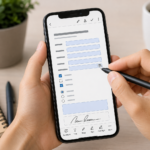
On iPhone, you can sign a PDF using iOS’s built-in tools, particularly the editing and annotation feature. This feature allows you to add text, drawings, graphic marks, and signatures to documents and images. The process might vary slightly depending on your iOS version and the app you open the file with, but generally, you can proceed as follows:
Open the PDF on your iPhone, for example from Files, Mail, Messages, or another app.
Tap the edit or annotation icon, often represented by a pen.
Look for the button + or the option to add elements.
Select Signature, if available.
Draw your signature with your finger or Apple Pencil if you are using an iPad.
Place the signature in the correct spot on the document.
Resize the signature if needed.
Save the signed PDF.
Share it via email, WhatsApp, cloud, or another app.
This method is very convenient because it doesn’t require external apps. It’s especially suitable when you need to add a visible signature to an already finalized PDF.
How to Sign a PDF on Android
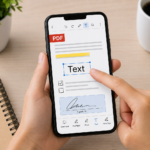
On Android, options depend on the phone model, installed apps, and the default PDF viewer. Some smartphones allow you to annotate the PDF directly, others require a dedicated app. If the PDF is saved in Google Drive or an app that supports annotations, you can use freehand writing tools to add a graphic signature with your finger or a stylus.
The general procedure is as follows:
Open the PDF on the Android device.
Enter preview, edit, or annotation mode if available.
Look for the pen, pencil, or freehand drawing tool.
Draw your signature with your finger or a stylus.
Place it in the correct area of the document.
Save a copy of the annotated or signed PDF.
Open the saved file to verify that the signature is visible.
Share the updated document.
If your phone doesn’t allow convenient PDF annotation, you can use a PDF app with signing functionality, like Adobe Acrobat or similar tools.
Signing PDFs with Adobe Acrobat mobile
Adobe Acrobat mobile is one of the most used apps to open, fill, and sign PDFs from smartphones. It’s especially useful when the document contains fields to complete, checkboxes, dates, initials, or signature spaces. The general steps are:
Install or open Adobe Acrobat on your smartphone.
Open the PDF to be signed.
Look for the function Fill and sign or a similar item.
Tap the spot in the document where you want to insert the signature.
Create a new signature with your finger or recall a previously saved signature.
Position and resize the signature.
Save the signed document.
Share it with the recipient.
This method is useful when the PDF needs not only to be signed but also filled out with name, date, address, notes, or other required data.
How to sign with finger, stylus, or saved signature
When signing a PDF from a smartphone, you can use several methods to insert the signature.
Finger: is the most immediate method. It works on all smartphones, but the signature may be less precise.
Stylus: offers more controlled strokes, especially on tablets or compatible phones.
Saved signature: some apps allow you to create a signature once and reuse it in subsequent documents.
Signature image: some apps allow importing a signature as an image, but it should be used carefully to avoid messy or easily reusable files.
For simple documents, a finger may suffice. For tidier or professional documents, a stylus or a saved signature in the app can yield a better result.
How to fill out a PDF before signing it
Often a PDF needs not only to be signed but also filled out. You might have to enter a name, date, address, tax code, phone number, checkboxes, or short answers. Before signing, check if the document contains fillable fields. If so, you can tap the fields and enter text directly. If there are no interactive fields, you can use the app’s text tools to manually add the information. An ordered sequence could be this:
Open the PDF.
Read the entire document.
Fill in the required fields.
Add any dates or initials.
Check that the data is correct.
Add the signature only at the end.
Save a copy of the signed document.
Signing before filling out can lead to errors, especially if you then need to modify the file or repeat the procedure.
How to send the signed PDF
After signing the PDF, you can send it as an attachment. The best method depends on the recipient and the type of document.
You can send it via:
email;
WhatsApp as a document;
Google Drive;
iCloud Drive;
OneDrive;
Dropbox;
recipient’s online portal;
company or institutional app.
For important documents, email or an official portal is often preferable to chat. If you use WhatsApp, send the PDF as a document and not as an image, so it stays neater and easier to download.
If the document starts from a paper sheet
Sometimes the document to be signed doesn’t originate as a PDF, but as a paper sheet. In this case, you first need to scan it with your smartphone, save it as a PDF, and then sign it.
The opposite may also happen: you have a photo of the document, but not an actual PDF. Before signing, it’s best to convert the image to PDF, so the final file will be more organized. This is useful when you have:
A graphic signature inserted in a PDF can be sufficient for many informal operations or for documents where the recipient accepts it. However, it is not always suitable for documents with legal value, important contracts, official procedures, administrative processes, or acts requiring a specific electronic signature.
In these cases, an advanced electronic signature, a qualified electronic signature, or a digital signature system provided by a recognized provider may be required. If the recipient explicitly requests a digital signature, a simple signature drawn on the PDF may not be enough. Before signing an important document from a smartphone, always check:
what type of signature the recipient requires;
if a graphic signature is sufficient;
if a certified digital signature is needed;
if the document must be sent through a specific portal;
if the file must maintain integrity or validation requirements.
This check avoids sending a document that could be rejected later. To better understand when a legally valid electronic signature is needed and when a simpler signature is enough, you can also read the in-depth article on the digital signature in Italy.
Mistakes to avoid when signing a PDF from a smartphone
Signing a PDF from your phone is simple, but some mistakes can cause problems.
Signing without reading the document: always check the entire content before adding your signature.
Confusing graphic signature and digital signature: they do not always have the same value.
Saving over the original file without making a copy: it’s better to keep an unsigned version.
Inserting the signature in the wrong place: check position, size, and page.
Sending the document as an image: if it is a PDF, send it as a file or document.
Using unreliable apps for sensitive documents: carefully consider privacy and permissions.
Not verifying the final file: open the signed PDF before sending it.
Privacy and security of signed documents
A signed PDF may contain personal data, signatures, addresses, document numbers, financial information, health data, or confidential details. For this reason, it must be handled with care. Before uploading or sending the document:
check who you are sending it to;
use reliable channels;
avoid unknown links or apps;
do not share signed documents in public chats or unnecessary groups;
remove any unnecessary pages;
save a copy in a secure folder;
avoid leaving sensitive documents in downloads or temporary apps.
Table: which method to use to sign a PDF from a smartphone
The choice of tool depends on the device and the type of document.
Situation
Recommended method
When to use it
Simple PDF on iPhone
Annotation tools
To add a graphic signature without external apps
PDF on Android
Freehand annotation
To sign or mark a PDF with a finger or stylus
Form to fill out and sign
PDF app with fill and sign function
To insert text, fields, date, and signature
Paper document
Scan + PDF signature
When starting from a physical sheet
Official document or important contract
Digital signature required by the recipient
When legal value or specific validation is needed
File to send via WhatsApp
Send as a document
To keep the PDF organized and downloadable
In summary
Signing a PDF from a smartphone is simple and allows you to avoid printing, pen, scanner, and unnecessary steps. On iPhone, you can use the built-in annotation tools; on Android, you can use annotation tools, Google Drive, or PDF apps; with dedicated apps, you can fill out and sign forms more comprehensively.
The most important thing is to understand that a graphic signature inserted into the PDF is not always equivalent to a qualified digital signature. For simple documents, it may suffice, but for official procedures or important contracts you must verify the type of signature required. Before sending the signed PDF, always check that the document is complete, legible, signed in the right place, and shared through a secure channel.
Frequently Asked Questions
Can I sign a PDF from a smartphone without printing it?
Yes. On iPhone, you can use the built-in annotation tools, while on Android you can use PDF annotation apps, Google Drive, or PDF applications with a signing feature.
Does signing a PDF with a finger have legal value?
It depends on the type of document, the context, and what the recipient requires. A graphic signature with a finger is not always equivalent to a qualified digital signature. For official documents, always check the type of signature required.
How to sign a PDF on iPhone?
Open the PDF, use the edit or annotation function, add a signature, position it in the correct spot, and save the signed document.
How to sign a PDF on Android?
You can open the PDF with an app that supports annotations or signing, use built-in tools when available, or choose a compatible PDF app.
Which app to use for signing PDFs from a phone?
You can use built-in tools on iPhone, Google Drive on Android when it allows annotations, or dedicated apps like Adobe Acrobat mobile and other PDF readers with fill and sign functions.
Can I sign a PDF received via WhatsApp?
Yes. Download the PDF to your phone, open it with a compatible app, add the signature, save the file, and resend it as a document.
Should I save a copy of the original PDF?
Yes, it is advisable. Keeping an unsigned copy allows you to correct any mistakes or redo the procedure without losing the original file.
When is a qualified digital signature needed?
It may be necessary for contracts, official procedures, administrative documents, or processes requiring an electronic signature with specific requirements. In these cases, a graphic signature inserted in the PDF is not always enough.
Per fornire le migliori esperienze, utilizziamo tecnologie come i cookie per memorizzare e/o accedere alle informazioni del dispositivo. Il consenso a queste tecnologie ci permetterà di elaborare dati come il comportamento di navigazione o ID unici su questo sito. Non acconsentire o ritirare il consenso può influire negativamente su alcune caratteristiche e funzioni.
Funzionale
Always active
L'archiviazione tecnica o l'accesso sono strettamente necessari al fine legittimo di consentire l'uso di un servizio specifico esplicitamente richiesto dall'abbonato o dall'utente, o al solo scopo di effettuare la trasmissione di una comunicazione su una rete di comunicazione elettronica.
Preferenze
L'archiviazione tecnica o l'accesso sono necessari per lo scopo legittimo di memorizzare le preferenze che non sono richieste dall'abbonato o dall'utente.
Statistiche
L'archiviazione tecnica o l'accesso che viene utilizzato esclusivamente per scopi statistici.L'archiviazione tecnica o l'accesso che viene utilizzato esclusivamente per scopi statistici anonimi. Senza un mandato di comparizione, una conformità volontaria da parte del vostro Fornitore di Servizi Internet, o ulteriori registrazioni da parte di terzi, le informazioni memorizzate o recuperate per questo scopo da sole non possono di solito essere utilizzate per l'identificazione.
Marketing
L'archiviazione tecnica o l'accesso sono necessari per creare profili di utenti per inviare pubblicità, o per tracciare l'utente su un sito web o su diversi siti web per scopi di marketing simili.