How to compress a PDF for free without losing quality
Compressing a PDF is useful when the file is too large to be sent by email, uploaded to a portal, or shared from a smartphone. In this guide, we will see how to reduce the size of a PDF for free, which methods to use, and how to avoid losing readability.
How to compress a PDF for free without losing quality
Compressing a PDF is useful when the file is too large to be sent via email, uploaded to a portal, shared from a smartphone, or stored without taking up too much space. This often happens with scanned documents, PDFs full of images, signed forms, presentations saved as PDFs, catalogs, receipts, contracts, or files merged from multiple documents.
Summary
Reducing the size of a PDF, however, does not always mean achieving a good result. If compression is too aggressive, the text can become less readable, images may lose detail, and some pages can appear pixelated. That’s why it’s important to choose the right method based on the type of document.
In this guide we will see how to compress a PDF for free without losing quality, which tools to use online, on iPhone, Android, Mac, and Windows, when it makes sense to compress, and which mistakes to avoid before sending the file.
Useful note: no compression is truly “lossless” in the absolute sense when the PDF contains images. The practical goal is to reduce the file size while keeping text, signatures, graphics, and images sufficiently legible for the final use.
When you need to compress a PDF
Compressing a PDF is necessary when the file is too large for the intended use. A heavy document can be difficult to send, upload, download, or store, especially if you’re working from a smartphone or with a slow internet connection.
It can be useful to compress a PDF when you need to:
A PDF can become large for many reasons. Often the problem isn’t the text but the images contained in the document: high-resolution scans, unoptimized photos, charts, logos, photographed pages, or presentations exported without size reduction.
The most common reasons are:
scans with too high resolution;
photos inserted without compression;
many pages in the same file;
documents merged from multiple PDFs;
presentations converted to PDF;
color images when black and white would be enough;
files exported with too high print quality;
duplicate or unnecessary pages;
attachments or embedded graphic elements.
Understanding why the PDF size is too large helps choose the best solution. Compressing a text document is one thing, reducing a PDF made up of photographic scans is another.
Compressing a PDF without losing quality: what it really means
When talking about compressing a PDF without losing quality, you need to be precise. If the PDF contains only text, reduction can be very efficient and almost invisible. If it contains images, scans, or photos, some quality loss may occur.
The goal is not always to maintain 100% of the original quality, but to find a balance between size and readability. A PDF meant to be read on screen can be lighter than one intended for professional printing.
In practice:
for on-screen reading: you can use medium compression;
for sending by email: you can reduce images and overall size;
for printing: avoid overly aggressive compression;
for official documents: always check signatures, stamps, and details;
for scans: ensure the text remains readable.
Before compressing: check the PDF
Before compressing a PDF, open it and check what it contains. In some cases, you can reduce size by removing unnecessary elements even before using a compression tool.
The simplest method to compress a PDF is to use an online tool. You upload the file, choose the compression level, download the reduced PDF, and check it before sending.
The general process is this:
choose a reliable online tool;
upload the PDF to be compressed;
select the compression level, if available;
start the file reduction;
download the compressed PDF;
open the file and check the quality;
verify the final size;
only use the file if text and images are still readable.
Online tools are convenient but should be used carefully. If the PDF contains identity documents, tax data, contracts, signatures, health information, or confidential content, consider whether it is better to use a tool installed on your device.
When to avoid online PDF compressors
Not all PDFs should be uploaded to online services. Even though many tools are well-known and reliable, a confidential document deserves extra caution.
Avoid random online tools when the PDF contains:
identity documents;
personal data of other people;
signatures;
confidential contracts;
medical documents;
bank information;
tax data;
internal company documents;
material not intended for public sharing.
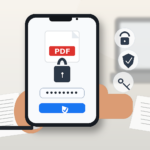
If the document contains personal data or confidential information, after compression it may be useful to follow the guide on how to password protect a PDF.
How to compress a PDF on Mac
On Mac, you can reduce the size of a PDF using Preview, the built-in app for opening and managing PDFs and images. It is a convenient solution because it does not require additional installations.
The general process is this:
open the PDF with Preview;
use the export function;
choose a filter or an option to reduce the file size;
save a new copy of the PDF;
check the size of the exported file;
open the compressed PDF to verify readability.
On Mac, it is important to check the final result because some reductions can be aggressive and greatly worsen image quality. For documents with small text, signatures, or stamps, always verify by zooming in on the page.
How to compress a PDF on Windows
On Windows, you can compress a PDF using online tools, dedicated PDF apps, productivity software, or specific PDF management programs. The system doesn’t always offer a universal function to reduce already finished PDFs, so the solution depends on the program you use.
You can try to:
use a reliable online PDF compressor;
open the file with a PDF editor that supports optimization;
reduce the images in the original document before exporting it as PDF;
export the file again with lower quality;
split a too-large PDF into multiple parts;
remove unnecessary pages.
If the PDF originates from Word, PowerPoint, or other programs, it is often best to lighten images and content before exporting. This way the final PDF will already be lighter from the start.
How to compress a PDF from iPhone
From iPhone, you can reduce the size of a PDF using dedicated apps, online tools, or functions available in some document management apps. The solution depends on the type of file and how sensitive the content is.
A practical workflow can be this:
save the PDF in the Files app or in a cloud folder;
check the document size;
open a reliable compression app or tool;
choose the compression level;
save a copy of the reduced PDF;
open the compressed file;
check that text, signatures, and images are readable;
send or archive the document.
If the PDF contains confidential documents, avoid random tools and consider reliable apps or compression from a computer.
How to Compress a PDF from Android
On Android, you can compress a PDF with dedicated apps, online services, or cloud tools. It largely depends on the app used to open and manage the documents.
The general approach is similar:
save the PDF on the phone;
check the file size;
choose a reliable app or tool;
upload or open the PDF;
select the compression level;
save a new copy;
reopen the file to review it;
share it only after verification.
From a smartphone, be especially careful with privacy: many PDFs compressed on the phone are documents just received, signed, or filled out, so they may contain personal data.
Compressing a PDF for email
One of the most common reasons to compress a PDF is to send it via email. Many email services have attachment size limits, and an overly large PDF can prevent sending or cause issues for the recipient.
To prepare a PDF for email:
check the initial file size;
remove unnecessary pages;
compress it at a medium level;
open the file to verify readability;
check the new file size;
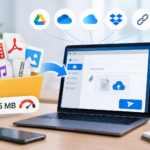
if it remains too large, send a cloud link instead of the attachment;
protect the document if it contains sensitive data.
If, even after compression, the file remains too large, do not force sending: use a cloud link or a file transfer service.
Compressing a PDF to 1 MB, 2 MB, or 5 MB
Many portals require PDFs below a specific size threshold, for example, 1 MB, 2 MB, or 5 MB. In these cases, you need to reduce the file size until it meets the limit, but without destroying the document’s quality.
To achieve this you can:
try medium compression;
check the final file size;
move to stronger compression only if necessary;
remove unnecessary pages;
reduce images that are too large;
convert color scans to black and white when possible;
split the document if the portal allows it.
It is not always possible to compress a very large PDF under 1 MB while maintaining good quality. If the document contains many images or scans, the limit might be too low for a readable result.
Compressing PDFs without losing readability
The most important quality for many documents is not the beauty of the image but readability. A compressed PDF must remain clear for those who receive it.
After compression, check:
small text;
signatures;
stamps;
QR codes;
barcodes;
charts;
tables;
important images;
handwritten notes;
filled fields.
If any of these elements become unclear, try a less aggressive compression or reduce the file in another way, for example by deleting unnecessary pages.
Compressing a signed PDF: caution
When a PDF is already signed, you must be very careful. Some changes, compressions, or exports could alter the file and cause problems with the signature or the validity of the document, especially if it involves digital signatures or official procedures.
do not modify the document after a digital signature unless you understand the consequences;
use reliable tools for official files;
if possible, compress first and sign afterward.
Compress before or after editing the PDF?
It is usually best to compress the PDF at the end, after completing edits, filling out forms, merging files, and applying a digital signature. This way you work on the complete document and reduce the size only of the final version.
The most orderly sequence can be:
create or gather the PDF;
edit it, if necessary;
fill it out;
sign it, if needed;
merge any attachments;
compress the final file;
password protect it, if it contains confidential data;
Is it better to compress or create a lighter PDF from the start?
When possible, it’s better to create a lightweight PDF from the beginning. Compressing afterward can help, but if the file starts with huge images, heavy scans, or unnecessary pages, the result might be less effective.
To create lighter PDFs:
scan at the right resolution;
use black and white for textual documents;
avoid unnecessarily large photos;
reduce images before inserting them;
do not duplicate attachments;
export with settings suitable for screen viewing if you don’t need to print;
check the file size before sending.
The best compression is often the one you don’t have to do because the document is already well optimized.
Table: which method to use to compress a PDF
The choice of method depends on the device, the type of document, and the level of privacy required.
Situation
Recommended method
When to use it
Non-confidential PDF
Reliable online compressor
When you want to quickly reduce the file size
PDF with personal data
Local tool or reliable app
When the document contains sensitive information
PDF on Mac
Preview or PDF app
When you want to reduce the file without installing many tools
PDF on Windows
Reliable PDF editor or compressor
When you work from a PC and need to check the result
PDF from smartphone
Secure PDF app or cloud service
When you need to reduce the file from iPhone or Android
PDF for email
Medium compression or cloud link
When the file exceeds the attachment limit
Signed PDF
Careful compression
When you need to avoid compromising signatures or validations
Mistakes to avoid when compressing a PDF
Compressing a PDF is simple, but some mistakes can worsen the document or make it less usable.
Over-compressing: the file becomes light, but the text can become unreadable.
Not checking the result: always open the compressed PDF before sending it.
Uploading confidential documents on random sites: beware of privacy and personal data.
Overwriting the original: keep a copy of the uncompressed file.
Compress a signed PDF without verification: some operations can cause issues with signatures or validations.
Using ZIP hoping for big reductions: for many PDFs the gain is minimal.
Ignoring the required limit: always check if the portal requires 1 MB, 2 MB, or another threshold.
Reducing important images: charts, codes, and tables must remain readable.
Privacy and security of compressed PDFs
A compressed PDF may contain the same sensitive data as the original file. Compression reduces the size but does not make the document more secure. If the file contains confidential information, you must protect it and share it carefully.
Before sending a compressed PDF, check:
correct recipient;
visible personal data;
signatures and identification documents;
unnecessary pages;
file name;
possible password;
cloud link permissions;
presence of information not intended for the recipient.
Compression is only part of the process: privacy, permissions, and sending channel remain fundamental.
In summary
Compressing a PDF for free is useful when the file is too large for email, portals, cloud, or smartphone sharing. You can use online tools, apps for iPhone and Android, Preview on Mac, PDF editors on Windows, or lighter export functions when the document is created from Word, PowerPoint, or other programs.
The most important thing is not to look only at the final size. A compressed PDF must remain readable, complete, and suitable for its intended use. For simple documents, online compression may suffice; for confidential files, it is better to use reliable tools and check privacy and security.
Before sending the document, always open the compressed PDF, verify text, signatures, images, and final size. If the file contains sensitive data, also consider password protection and sharing permissions.
Frequently Asked Questions
Can I compress a PDF for free?
Yes. You can use free online tools, smartphone apps, built-in functions on Mac, or PDF programs. Some advanced features may require subscriptions or paid versions.
How to compress a PDF without losing quality?
Use moderate compression, check the final result, and verify that text, signatures, stamps, images, and tables remain readable. Avoid overly aggressive compressions if the document needs to be printed.
How to compress a PDF online?
Upload the PDF to a reliable online tool, choose the compression level, download the reduced file, and open it to check quality and final size.
How to compress a PDF on iPhone?
You can use PDF apps, online tools, or compatible cloud services. After compression, save a copy and ensure the document is still readable.
How to compress a PDF on Mac?
On Mac, you can use Preview or dedicated PDF apps. After exporting in reduced size, always check that the text and images are readable.
Why is the PDF still large even after compression?
It may be due to very large images, high-resolution scans, many pages, or embedded elements. In these cases, it might be necessary to remove pages, reduce images, or split the file.
Is it safe to compress PDFs online?
It depends on the document and the service used. For non-sensitive PDFs it can be convenient; for documents with personal data, signatures, or confidential information, it’s better to use local tools or very reliable services.
Can compressing a signed PDF cause problems?
Yes, in some cases. If the PDF contains a digital signature or needs to maintain formal validity, compress with caution, keep the original, and verify that the signature remains valid.
Per fornire le migliori esperienze, utilizziamo tecnologie come i cookie per memorizzare e/o accedere alle informazioni del dispositivo. Il consenso a queste tecnologie ci permetterà di elaborare dati come il comportamento di navigazione o ID unici su questo sito. Non acconsentire o ritirare il consenso può influire negativamente su alcune caratteristiche e funzioni.
Funzionale
Always active
L'archiviazione tecnica o l'accesso sono strettamente necessari al fine legittimo di consentire l'uso di un servizio specifico esplicitamente richiesto dall'abbonato o dall'utente, o al solo scopo di effettuare la trasmissione di una comunicazione su una rete di comunicazione elettronica.
Preferenze
L'archiviazione tecnica o l'accesso sono necessari per lo scopo legittimo di memorizzare le preferenze che non sono richieste dall'abbonato o dall'utente.
Statistiche
L'archiviazione tecnica o l'accesso che viene utilizzato esclusivamente per scopi statistici.L'archiviazione tecnica o l'accesso che viene utilizzato esclusivamente per scopi statistici anonimi. Senza un mandato di comparizione, una conformità volontaria da parte del vostro Fornitore di Servizi Internet, o ulteriori registrazioni da parte di terzi, le informazioni memorizzate o recuperate per questo scopo da sole non possono di solito essere utilizzate per l'identificazione.
Marketing
L'archiviazione tecnica o l'accesso sono necessari per creare profili di utenti per inviare pubblicità, o per tracciare l'utente su un sito web o su diversi siti web per scopi di marketing simili.