Convert HEIC to JPG: simple guide for PC, Android, and web
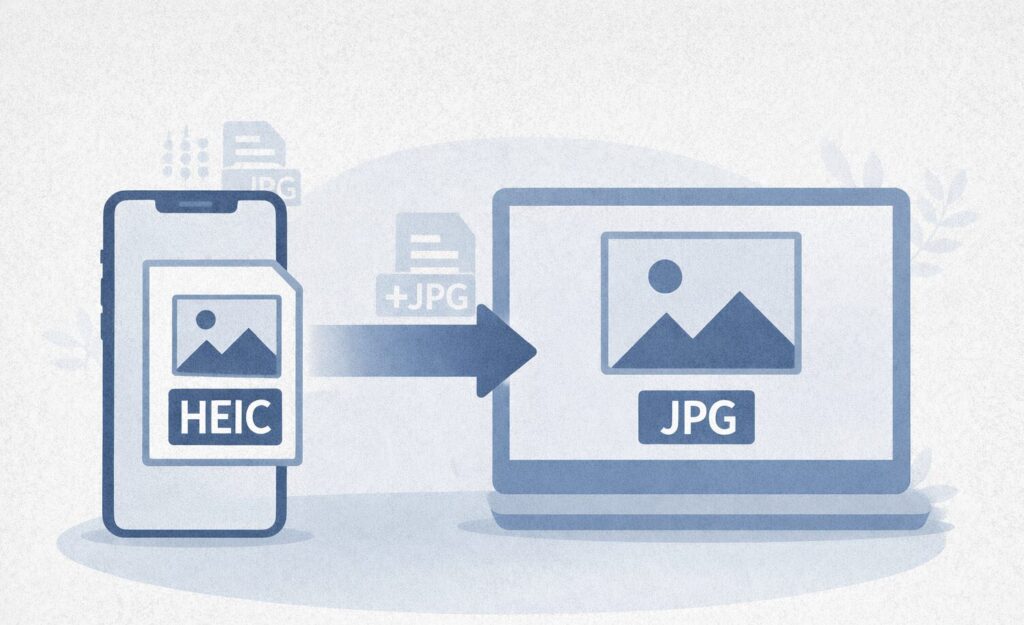
HEIC files are becoming increasingly common, especially on iPhones, but they are not always compatible with all devices and programs. In this guide, you’ll learn how to easily convert HEIC images to JPG using free tools on PC, Android, and the web, while maintaining good quality and avoiding complications.
The HEIC (High Efficiency Image Container) format has become the standard for photos taken with the latest Apple devices, such as iPhone and iPad. This format allows for high-quality images while taking up less space compared to the classic JPG, but it has a significant limitation: it is not always compatible with all devices, software, and online platforms. For this reason, converting HEIC files to JPG is often necessary when sharing images, uploading them to websites, or using them on Windows computers or Android devices.
HEIC is a format based on the HEIF (High Efficiency Image Format) standard developed to offer high-quality images with reduced sizes. Apple uses it to optimize space on devices without sacrificing photo details. The main advantages are:
smaller size compared to JPG;
higher quality at the same file weight;
support for multiple images within the same file;
better color management.
However, many programs and websites still do not fully support this format.
When is it necessary to convert HEIC to JPG
Conversion becomes useful when:
you need to send photos via email or WhatsApp;
you need to upload images to websites or CMS;
you use software that does not support HEIC;
you work on a Windows PC without updated codecs;
you need to create PDF documents with compatible images.
Convert HEIC to JPG on Windows
Method 1: Windows Photos app
Open the HEIC file with the Photos app;
Click on Save as;
Choose the JPG format;
Save the new image.
If the file does not open, it may be necessary to install the HEIF codec from the Microsoft Store.
Method 2: free tools
IrfanView (with HEIC plugin);
XnConvert (batch conversion);
CopyTrans HEIC for Windows.
Convert HEIC to JPG on Mac
On macOS the conversion is very simple thanks to the Preview app:
Open the image;
Go to File → Export;
Choose JPG as the format;
Adjust the quality and save.
You can also convert multiple images at once by selecting them and opening all in Preview.
Convert HEIC to JPG on Android
Android does not natively use HEIC, but it can open and convert these files with some apps:
HEIC Converter;
Luma;
File Converter.
Just upload the image and choose JPG as the output format.
Convert HEIC to JPG online
If you want to avoid installations, you can use online tools:
iLoveIMG;
HEICtoJPG;
CloudConvert;
Convertio.
Upload the HEIC file and download the JPG version in a few seconds.
Image quality after conversion
During conversion, it is important to choose the quality level. A setting that is too low can reduce details, while one that is too high maintains quality but increases the file size. After conversion, you can further optimize the file by following the guide on how to compress photos without losing quality.
Be careful with image metadata
HEIC files can contain EXIF data and GPS location information. After conversion, this data can be kept or removed. To manage them:
Converting HEIC files to JPG is a simple but often necessary operation to ensure compatibility and ease of use of images. With the right tools, you can get fast results and maintain excellent visual quality. Whether you use Windows, Mac, Android or online services, you have free and immediate solutions available to manage your images in the best way. The HEIC (High Efficiency Image Container) format has become the standard for photos taken with the latest Apple devices, such as iPhone and iPad. This format allows you to get high-quality images while taking up less space than classic JPGs, but it has an important limitation: it is not always compatible with all devices, software and online platforms.
Many users find it difficult when they have to open or share a HEIC photo on a Windows computer, upload it to a website or send it via services that accept only JPG. For this reason, converting HEIC files to JPG is often a necessary step in the daily workflow. If you often work with digital images, you may also find other guides on our site useful, such as how to compress photos without losing quality o how to search text inside a photo, which often precede or follow the conversion phase.
What is the HEIC format and why is it used
HEIC is a format based on the HEIF (High Efficiency Image Format) standard, designed to offer better compression compared to traditional formats. Apple adopted it to reduce the space occupied by photos without compromising visual quality. In practice, a HEIC photo can weigh half as much as a JPG while maintaining a higher level of detail. This makes it ideal for storing large amounts of images on smartphones and devices with limited space. The main advantages are:
smaller size compared to JPG;
higher quality at the same weight;
support for multiple images in the same file;
better color and depth management.
Despite these advantages, the HEIC format is not yet universally supported, and this is why it is often necessary to convert it.
When it is necessary to convert HEIC to JPG
Conversion from HEIC to JPG becomes essential in many practical situations:
when you need to send images via email or WhatsApp;
when uploading photos to websites or CMS;
when using software not compatible with HEIC;
when working on Windows PC without updated codecs;
when you need to insert images into PDF documents or official files.
In general, JPG remains the most compatible and universally accepted format.
Differences between HEIC and JPG: which to choose
Understanding the difference between HEIC and JPG is useful to choose the most suitable format:
HEIC: better quality and smaller size, but limited compatibility;
JPG: total compatibility, but larger files and lossy compression.
For personal storage, HEIC is excellent. For sharing and work, JPG remains the most practical choice.
Convert HEIC to JPG on Windows
Method 1: Windows Photos app
Open the HEIC file with the Photos app;
Click on Save as;
Choose the JPG format;
Save the new image.
If the file doesn’t open, HEIC support is probably missing: in this case, you can install the HEIF codec from the Microsoft Store.
Method 2: batch conversion
If you have many images to convert, you can use tools like:
IrfanView (with HEIC plugin);
XnConvert;
CopyTrans HEIC for Windows.
These programs allow you to convert hundreds of images in just a few clicks.
Convert HEIC to JPG on Mac
On macOS the conversion is immediate thanks to the Preview app:
Open the image;
Go to File → Export;
Select JPG;
Adjust the quality and save.
You can also select multiple images and convert them together, creating a very quick workflow.
Convert HEIC to JPG on Android
Android increasingly supports HEIC, but often conversion is needed for compatibility. You can use dedicated apps:
HEIC Converter;
Luma;
File Converter.
The process is simple: upload the file, choose JPG, and start the conversion.
Convert HEIC to JPG online
If you prefer to avoid installations, you can use online tools:
iLoveIMG;
HEICtoJPG;
CloudConvert;
Convertio.
These are quick solutions perfect for occasional conversions.
Image quality after conversion
During conversion, the most important parameter is quality. Too low settings can degrade the image, while high settings preserve details but increase the file size. After conversion, you can further optimize the file using dedicated tools, as explained in the guide on how to compress photos without losing quality.
Attention to image metadata
HEIC images can contain EXIF metadata and GPS location information. These data can be retained even after conversion. To check or remove them:
Managing these aspects is especially important when sharing images online.
Conclusion
Converting HEIC files to JPG is a simple solution to solve compatibility problems of modern images. Thanks to tools available on PC, Mac, Android, and web, you can perform the conversion in seconds without losing quality. Integrating this operation into your workflow will allow you to better manage images, share them more easily, and use them without limitations on any platform.
Frequently Asked Questions
How to convert a HEIC file to JPG without losing quality?
To convert a HEIC file to JPG without losing quality, it is important to choose a high compression level during export. Tools like Preview on Mac, Photos on Windows, or online services allow maintaining excellent visual quality with minimal, often imperceptible, loss.
Why don’t HEIC files open on Windows?
Windows does not natively support the HEIC format in all versions. To open these files, you need to install the HEIF codec from the Microsoft Store or use compatible software like IrfanView or XnConvert.
Is HEIC better or JPG?
The HEIC format offers superior quality at the same file size but has more limited compatibility. The JPG format is more universal and supported everywhere, making it the best choice for sharing.
How to convert multiple HEIC files to JPG at the same time?
To convert multiple files in one operation, you can use programs like XnConvert, IrfanView, or online tools that support batch conversion. These allow converting entire folders of images in seconds.
Are metadata preserved after conversion?
It depends on the tool used. Some preserve EXIF data, others automatically remove it. It is always advisable to check the information in the images before sharing them.
Per fornire le migliori esperienze, utilizziamo tecnologie come i cookie per memorizzare e/o accedere alle informazioni del dispositivo. Il consenso a queste tecnologie ci permetterà di elaborare dati come il comportamento di navigazione o ID unici su questo sito. Non acconsentire o ritirare il consenso può influire negativamente su alcune caratteristiche e funzioni.
Funzionale
Always active
L'archiviazione tecnica o l'accesso sono strettamente necessari al fine legittimo di consentire l'uso di un servizio specifico esplicitamente richiesto dall'abbonato o dall'utente, o al solo scopo di effettuare la trasmissione di una comunicazione su una rete di comunicazione elettronica.
Preferenze
L'archiviazione tecnica o l'accesso sono necessari per lo scopo legittimo di memorizzare le preferenze che non sono richieste dall'abbonato o dall'utente.
Statistiche
L'archiviazione tecnica o l'accesso che viene utilizzato esclusivamente per scopi statistici.L'archiviazione tecnica o l'accesso che viene utilizzato esclusivamente per scopi statistici anonimi. Senza un mandato di comparizione, una conformità volontaria da parte del vostro Fornitore di Servizi Internet, o ulteriori registrazioni da parte di terzi, le informazioni memorizzate o recuperate per questo scopo da sole non possono di solito essere utilizzate per l'identificazione.
Marketing
L'archiviazione tecnica o l'accesso sono necessari per creare profili di utenti per inviare pubblicità, o per tracciare l'utente su un sito web o su diversi siti web per scopi di marketing simili.