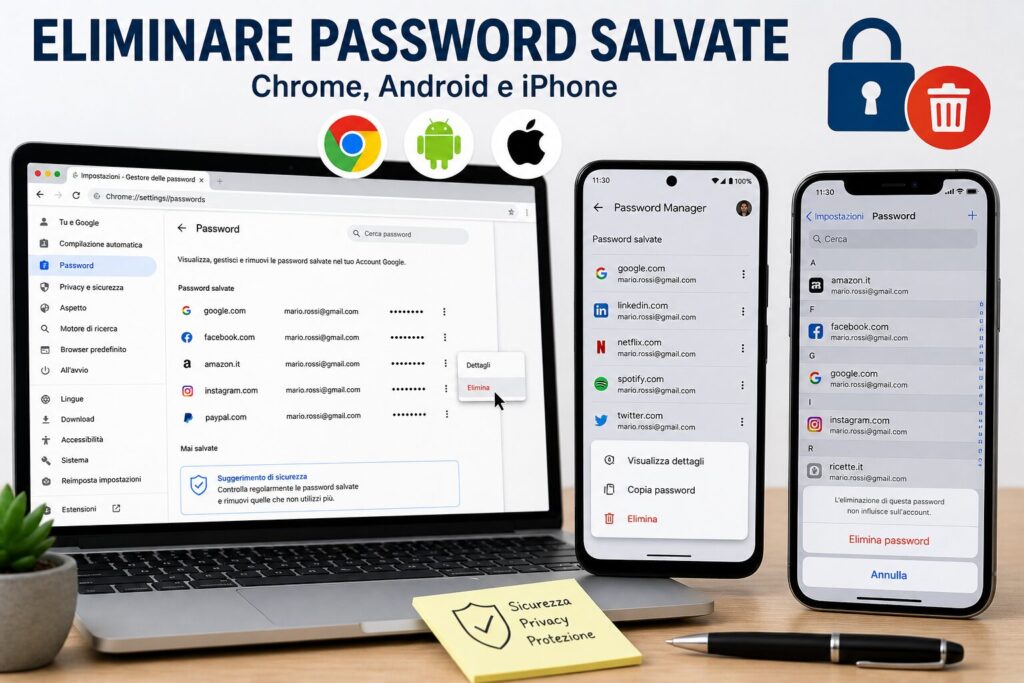
How to delete saved passwords from Chrome, Android and iPhone
Saved passwords in browsers and smartphones are convenient, but they can become a risk if they are not managed properly. In this guide, you will learn how to delete stored passwords on Chrome, Android and iPhone, improving the security of your accounts and protecting your personal data.
Saving passwords on browsers and smartphones is an extremely convenient feature, but it is not always the safest choice. In some cases, it may be necessary to delete stored credentials, for example when using a shared device, when suspecting a security issue, or simply when you want to maintain greater control over your data.
Summary
After seeing how to view saved passwords, in this guide we discover how to completely delete them from Chrome, Android, and iPhone, as well as what happens after removal and how to prevent them from being automatically saved again.
Why delete saved passwords
There are various situations where it is advisable to delete stored passwords:
using a public or shared computer;
selling or changing your smartphone;
suspecting unauthorized access;
the need to update old credentials;
greater attention to privacy;
switching to a dedicated password manager.
Even though modern systems protect passwords with encryption and authentication, it is always good practice to know where they are saved and remove those no longer needed. This is especially true for important accounts such as email, online banking, social networks, cloud services, and work platforms.
Deleting a password does not mean deleting the account
An important point to clarify is this: deleting a saved password from the browser or smartphone does not delete the associated account. You only remove the stored credential from the device.
After deletion, you can continue to access the site or app by manually entering your username and password. However, if you no longer remember the password, you will have to use the recovery procedure provided by the service.
How to delete saved passwords on Chrome
From PC
Open Google Chrome;
Go to Settings;
Select Password Manager o Passwords;
Locate the site from which you want to remove the password;
Click the three dots next to the entry;
Select Delete.
The password will be removed and Chrome will no longer use it to autofill the login on that site.
Delete all saved passwords on Chrome
To delete all saved credentials:
Open Chrome;
Go to Settings;
Enter Privacy and security;
Click on Clear browsing data;
Open the Advanced;
Select Passwords and other sign-in data;
Confirm the deletion.
This operation should be used with caution, as it removes all passwords saved in the browser.
On smartphone
On Android and iPhone, you can delete saved passwords in Chrome as follows:
Open Chrome;
Go to Settings;
Open Password Manager o Passwords;
Select the desired site;
Tap Delete.
Authentication with PIN, fingerprint, or Face ID may be required.
How to delete passwords on Android
Passwords saved on Android are often managed by Google Password Manager, linked to the Google account. This means that removal can also sync across other devices connected to the same account.
Open Settings;
Go to Google;
Select Manage Google account;
Open the section Security;
Go to Password Manager;
Select the credential to delete;
Tap Delete.
Before deleting an important password, make sure you know it or can recover it. Otherwise, you risk having to reset access to the service.
How to delete passwords on iPhone
On iPhone, credentials are saved in the iCloud Keychain. Again, if synchronization is active, removal may affect other Apple devices linked to the same Apple ID.
Open Settings;
Go to Passwords;
Authenticate with Face ID, Touch ID, or passcode;
Select the site or app;
Tap Delete password.
The iCloud Keychain is very convenient, but it should be checked periodically to delete old, duplicate, or no longer used passwords.
How to prevent Chrome from saving new passwords
If you don’t want Chrome to keep asking you to save passwords, you can disable the feature.
Open Chrome;
Go to Settings;
Open Password Manager;
Disable the option Ask to save passwords.
From now on, Chrome will no longer offer to automatically save credentials. You can still use an external password manager or manually enter passwords when necessary.
When it is advisable to delete all passwords
In some cases, it can be useful to completely delete all saved credentials:
after a cyber attack;
in case of virus or malware;
before selling, giving away, or formatting a device;
when changing the password management system;
when you have mistakenly used a non-personal computer.
Deleting passwords is only one part of digital security. It is also important to avoid risky behaviors, especially when browsing online or downloading files.
Some malicious software can start automatically along with the operating system and remain active in the background. This can pose a risk even to saved credentials, especially if the computer has been compromised.
For this reason, it is useful to periodically check what runs at system startup. You can follow the guide on programs on startup to understand what to check and what to disable.
Is it better to delete passwords or use a password manager?
Deleting saved passwords is useful when you want to clean up or when you don’t trust the device. However, it is not always practical to remember all credentials manually.
In many cases, the best solution is to use a reliable password manager, which allows you to:
generate long and secure passwords;
store credentials securely;
avoid duplicate passwords;
synchronize logins across devices;
receive alerts in case of compromised passwords.
The choice depends on your level of usage: for a few accounts the built-in system may be enough, while for many services it is worth considering a dedicated tool.
Final checklist before deleting a password
Verify that you know the password or can recover it;
check if the password is synced on other devices;
consider if you need to update it first;
do not delete important credentials without a backup;
enable two-factor authentication on main accounts.
Conclusion
Deleting saved passwords on Chrome, Android, and iPhone is a simple but important operation to maintain control over your data. Whether it concerns security, privacy, or credential management, knowing how to erase this information is essential to protect your accounts.
Adopting good practices, regularly checking saved passwords, and removing those no longer needed is the first step towards a more mindful management of your digital security.
Per fornire le migliori esperienze, utilizziamo tecnologie come i cookie per memorizzare e/o accedere alle informazioni del dispositivo. Il consenso a queste tecnologie ci permetterà di elaborare dati come il comportamento di navigazione o ID unici su questo sito. Non acconsentire o ritirare il consenso può influire negativamente su alcune caratteristiche e funzioni.
Funzionale
Always active
L'archiviazione tecnica o l'accesso sono strettamente necessari al fine legittimo di consentire l'uso di un servizio specifico esplicitamente richiesto dall'abbonato o dall'utente, o al solo scopo di effettuare la trasmissione di una comunicazione su una rete di comunicazione elettronica.
Preferenze
L'archiviazione tecnica o l'accesso sono necessari per lo scopo legittimo di memorizzare le preferenze che non sono richieste dall'abbonato o dall'utente.
Statistiche
L'archiviazione tecnica o l'accesso che viene utilizzato esclusivamente per scopi statistici.L'archiviazione tecnica o l'accesso che viene utilizzato esclusivamente per scopi statistici anonimi. Senza un mandato di comparizione, una conformità volontaria da parte del vostro Fornitore di Servizi Internet, o ulteriori registrazioni da parte di terzi, le informazioni memorizzate o recuperate per questo scopo da sole non possono di solito essere utilizzate per l'identificazione.
Marketing
L'archiviazione tecnica o l'accesso sono necessari per creare profili di utenti per inviare pubblicità, o per tracciare l'utente su un sito web o su diversi siti web per scopi di marketing simili.