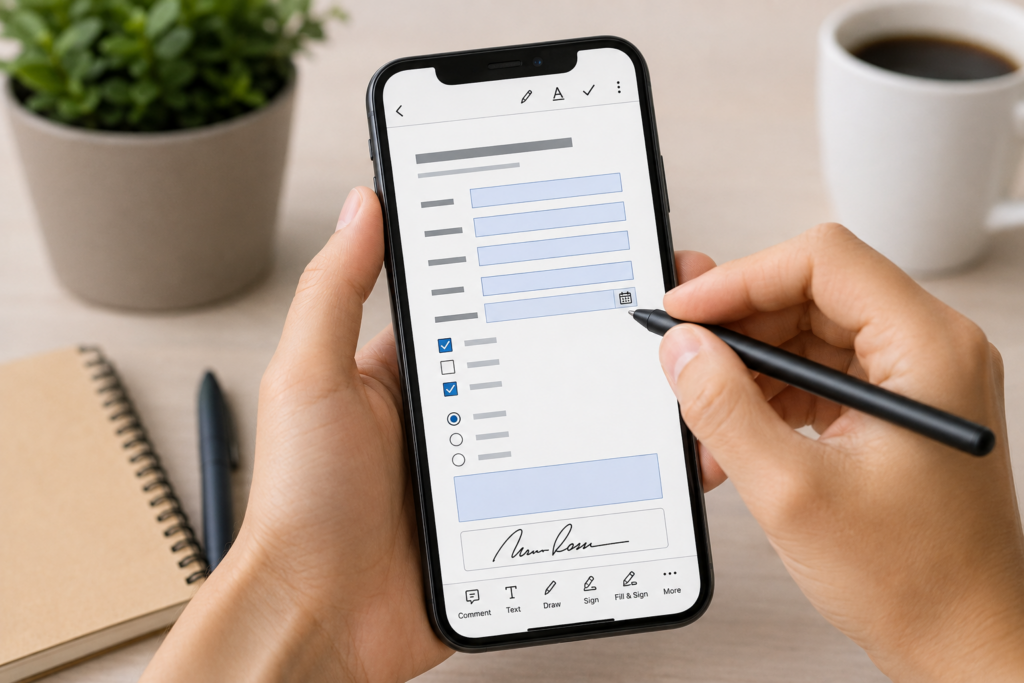
How to fill out a PDF from your smartphone: write, check boxes, and save the file
Filling out a PDF from a smartphone is useful when you receive a form, document, or request to complete without using a computer. In this guide, we will see how to write on a PDF, add dates, check boxes, save the file, and send it from Android and iPhone.
Filling out a PDF from a smartphone is one of the most useful operations when you receive a form, a request, a sheet, an authorization, or a document to complete quickly. You don’t always need to turn on the computer, print the file, or edit it with complex programs: in many cases, you can do it directly from Android or iPhone.
Summary
With your phone, you can open a PDF, add text, insert a date, fill in fields, check boxes, add notes, and save an updated copy of the document. If needed, you can also sign it and send it via email, WhatsApp, or cloud.
In this guide, we will see how to fill out a PDF from a smartphone, which tools to use on Android and iPhone, what to do when the PDF is not editable, and which mistakes to avoid before sending the file.
Useful note: filling out a PDF does not always mean modifying its original content. In many cases, text, marks, or annotations are added on top of the document, leaving the file’s structure unchanged.
When you need to fill out a PDF from a smartphone
Filling out a PDF from a phone is useful when you need to complete a document without printing anything. It can happen in many everyday situations, both personal and professional.
For example, it may be necessary to:
fill out a form received via email;
enter name, surname, date, or address;
check consent or selection boxes;
add a note to a document;
complete an administrative request;
fill out a school or work form;
prepare a PDF to be signed;
return a document without printing it.
It is a particularly convenient solution when you already have the file on your phone or when you receive the PDF via email, chat, or cloud and need to resend it quickly.
What you can add to a PDF from your phone
Available functions depend on the app you use and the type of PDF. Some files contain fillable fields, i.e., areas already set up to enter text. Others, instead, are simple static documents: in that case, you can add text and graphic marks as annotations.
Fillable PDF or non-editable PDF: what’s the difference?
Before starting, it’s useful to understand whether the PDF is fillable or not. The difference changes how you can interact with the document.
A fillable PDF contains interactive fields: you can tap a box, write inside a field, select options, or enter a date. This is the case for forms specifically created to be completed digitally.
A non-editable PDF, on the other hand, is like a printed page: you can read it, but you can’t always write directly in the fields. In this case, you can use annotation tools, text boxes, or PDF apps to add content on top of the document.
In practice:
if the PDF has fillable fields, tap the fields and enter the requested data;
if the PDF has no fillable fields, use text or annotation tools;
if the PDF is protected, you might not be able to edit it or save an editable copy;
if the document is a scan, you might need to add text on top of the page image.
How to fill out a PDF on iPhone
On iPhone you can fill out a PDF using iOS’s built-in tools, especially if you open the file from the Files app, Mail, or a document preview. Recent versions of iOS allow you to add text, signatures, annotations, and complete forms directly from the phone.
The steps may vary slightly depending on the app and system version, but generally you can proceed like this:
Open the PDF on iPhone, for example from Files, Mail, Messages, or a cloud app.
Tap the document to display available tools.
Look for the edit, annotation, or markup icon.
If the PDF has fillable fields, tap the field and enter text.
If there are no fields, use the text tool to add a box.
Position the text in the correct place.
Add any dates, check marks, or notes.
Review the completed document.
Save the filled PDF or share it.
On iPhone you can also use signature tools if the document requires a graphic signature. In this case, it’s best to fill in all fields first and sign only at the end.
How to fill out a PDF on Android
On Android you can fill out a PDF in various ways. Much depends on the phone, the installed PDF viewer, and the app you open the file with. Some devices allow you to write or annotate directly on the PDF, while others require a dedicated app.
A general approach could be this:
Open the PDF on your Android smartphone.
Check if the file has fillable fields.
Tap the fields and enter the text, if available.
If there are no fields, look for tools like text, pen, or annotation.
Add the requested information.
Enter any check marks or notes.
Save a copy of the completed document.
Open the final file to verify that the changes are visible.
Share the PDF with the recipient.
If the default PDF viewer is not enough, you can use Google Drive for simple annotations or a more complete PDF app to fill out forms and save the file in a tidier way.
Filling PDFs with Adobe Acrobat mobile
Adobe Acrobat mobile is one of the most used solutions to fill PDFs from a smartphone. It is available for Android and iPhone and allows you to open PDF files, enter text, fill out forms, add signatures, and save the updated document.
The general process is this:
Open Adobe Acrobat on your smartphone.
Import or open the PDF to be filled out.
Choose the function to fill or edit the document.
Tap the point where you want to enter text.
Write the requested information.
Add dates, check marks, or initials if needed.
Check all pages of the document.
Save a filled copy.
Share the final file.
This method is useful when the PDF contains forms, fields to fill, signature spaces, or multiple pieces of information to be entered precisely.
How to add text to a PDF from a smartphone
The most used function when filling a PDF is adding text. It is used to enter name, surname, address, email, phone number, date, code, or other information requested by the document.
To add text neatly:
Open the PDF with a compatible app.
Choose the text or fill tool.
Tap the spot where you want to write.
Enter the required text.
Adjust size and position, if possible.
Make sure the text does not cover lines, signatures, or important parts.
Repeat this for all necessary fields.
When writing on a PDF from your phone, use short and readable texts. If the document is very small or dense, it can be easier to rotate the phone horizontally or zoom in on the page before entering text.
How to check boxes and select options
Many PDF forms contain checkboxes, options to select, or small boxes to mark. If the PDF is fillable, just tap the box. If not, you can use a graphic mark, an X, a checkmark, or a small annotation.
To avoid confusion:
always use the same type of mark throughout the document;
do not cover the text near the box;
zoom in on the page before marking small boxes;
make sure the mark remains visible after saving;
avoid marks that are too large or messy.
If the document is important, open the saved PDF and verify that all boxes are still properly marked.
How to add a date to a PDF
Many documents require a date next to the signature or in a specific field. From a smartphone, you can enter it as text using the same tool you use to fill in other fields.
Before saving, check:
that the date format is consistent with the document;
that the date is in the correct field;
that it does not cover other information;
that it remains readable even after saving;
that it is correct relative to the day of sending or signing.
In translated articles, the date format may change based on the country. In a real document, however, it is best to respect the format requested by the recipient.
How to save the filled PDF
After filling out the PDF, just closing the app isn’t enough: you must verify that the changes were actually saved. Some apps save the file automatically, others ask you to create a copy.
The best choice is to save a copy with a clear name, for example:
form-filled.pdf;
document-signed.pdf;
request-completed.pdf;
name-surname-form.pdf;
contract-filled.pdf.
Avoid generic names like “new document”, “final file”, or “scan 1” because they can create confusion when you need to send the correct document.
How to send the filled PDF
Once saved, you can send the filled PDF via email, WhatsApp, cloud, or online portal. The method depends on the recipient and the type of document.
You can share it via:
email as an attachment;
WhatsApp as a document;
Google Drive;
iCloud Drive;
OneDrive;
Dropbox;
online portal;
business or school app.
For important documents, it’s better to send the PDF as a file and not as an image. This way the document remains more organized, downloadable, and readable.
If you have a photo of the document
Sometimes you don’t start from a PDF, but from a photo of the document. In this case, it’s better to first convert the image to PDF, so the file will be more organized and easier to fill out, store, or send. If you have a photo of the document and want to turn it into a more organized file, you can follow the guide on how to convert a photo to PDF with Android and iPhone. If instead you need to merge multiple images or create a single file from different photos, the guide on how to convert images to PDF.
When you also need to sign the PDF
Many documents must first be filled out and then signed. In these cases, the order is important: first enter all the required data, then review the document, and only at the end add the signature. A correct sequence can be:
Mistakes to avoid when filling out a PDF from a smartphone
Filling out a PDF on the phone is convenient, but some mistakes can make the document hard to read or unusable.
Not checking the final file: always open the saved PDF before sending it.
Writing too small: the text must remain readable even on a small screen.
Covering content: text boxes and marks must not hide important parts.
Using the wrong format: if the recipient asks for a PDF, do not send a photo.
Forgetting subsequent pages: many forms have multiple pages to fill out.
Signing before filling out: it’s better to add the signature only at the end.
Not saving a copy: always keep the completed file and, if possible, also the original.
Privacy and security of completed PDFs
A completed PDF can contain personal data, addresses, signatures, phone numbers, emails, tax data, financial information, or other confidential elements. For this reason, it is important to handle it carefully. Before sending it:
make sure the recipient is correct;
check that there is no unnecessary data;
use reliable channels;
avoid unclear apps for sensitive documents;
do not leave sensitive files in publicly shared folders;
delete unnecessary copies from temporary apps or downloads;
protect your phone with screen lock and secure account.
For very sensitive documents, always consider whether it is appropriate to use more secure tools or official channels indicated by the recipient.
Table: which method to use to fill out a PDF from a smartphone
The choice of tool depends on the type of PDF and what you need to enter.
Situation
Recommended method
When to use it
PDF with fillable fields
Touch the form fields
When the document is already set up for filling out
Non-editable PDF
Text boxes or annotations
When you need to write over the document
PDF on iPhone
Integrated Editing and Annotation Tools
For simple fill-outs without external apps
PDF on Android
PDF or annotation apps
When the default viewer allows writing or marking the file
Complex form
Dedicated PDF app
When you need to enter text, checkboxes, date, and signature
Document to sign
Fill out first, sign later
To avoid modifications after the document is already signed
In summary
Filling out a PDF from a smartphone is easy if you use the right tool. On iPhone, you can take advantage of integrated editing and annotation features; on Android, you can use tools available in the PDF viewer, Google Drive, or dedicated apps; with Adobe Acrobat mobile and similar solutions, you can also handle more complex forms.
Before sending the file, always check that the text is legible, that the boxes are correctly checked, that any dates are in the correct format, and that the document has been saved as a PDF.
The phone can replace a computer, printer, and scanner in many everyday situations, especially when you need to fill out, save, and send a document quickly.
Frequently Asked Questions
Can I fill out a PDF from a smartphone without printing?
Yes. You can open the PDF on your phone, add text, check boxes, enter dates or annotations, and save a filled-in copy without printing the document.
How do I fill out a PDF on iPhone?
Open the PDF from Files, Mail, or another app, use the editing or annotation tools, enter text into fields or add text boxes, and save the filled document.
How do I fill out a PDF on Android?
Open the PDF with a compatible app, check if there are fillable fields, and use text or annotation tools to add the required information.
What can I add to a PDF from a smartphone?
You can add text, dates, check marks, annotations, initials, comments, and, if necessary, a graphic signature.
Why can’t I write on a PDF?
The PDF might not have fillable fields, might be protected, or the app you’re using might not support editing. In these cases, try annotation tools or a more complete PDF app.
Can I fill out and sign the same PDF from the phone?
Yes. It’s recommended to fill out all fields first, review the document, and add the signature only at the end.
Is it better to send the filled PDF as a file or as an image?
It’s better to send it as a PDF file, especially if it’s a document. This way it remains more readable, neat, and downloadable.
Should I save a copy of the original PDF?
Yes, it is advisable to keep a copy of the original PDF and a copy of the filled PDF, so you can correct any errors without starting over.
Per fornire le migliori esperienze, utilizziamo tecnologie come i cookie per memorizzare e/o accedere alle informazioni del dispositivo. Il consenso a queste tecnologie ci permetterà di elaborare dati come il comportamento di navigazione o ID unici su questo sito. Non acconsentire o ritirare il consenso può influire negativamente su alcune caratteristiche e funzioni.
Funzionale
Always active
L'archiviazione tecnica o l'accesso sono strettamente necessari al fine legittimo di consentire l'uso di un servizio specifico esplicitamente richiesto dall'abbonato o dall'utente, o al solo scopo di effettuare la trasmissione di una comunicazione su una rete di comunicazione elettronica.
Preferenze
L'archiviazione tecnica o l'accesso sono necessari per lo scopo legittimo di memorizzare le preferenze che non sono richieste dall'abbonato o dall'utente.
Statistiche
L'archiviazione tecnica o l'accesso che viene utilizzato esclusivamente per scopi statistici.L'archiviazione tecnica o l'accesso che viene utilizzato esclusivamente per scopi statistici anonimi. Senza un mandato di comparizione, una conformità volontaria da parte del vostro Fornitore di Servizi Internet, o ulteriori registrazioni da parte di terzi, le informazioni memorizzate o recuperate per questo scopo da sole non possono di solito essere utilizzate per l'identificazione.
Marketing
L'archiviazione tecnica o l'accesso sono necessari per creare profili di utenti per inviare pubblicità, o per tracciare l'utente su un sito web o su diversi siti web per scopi di marketing simili.