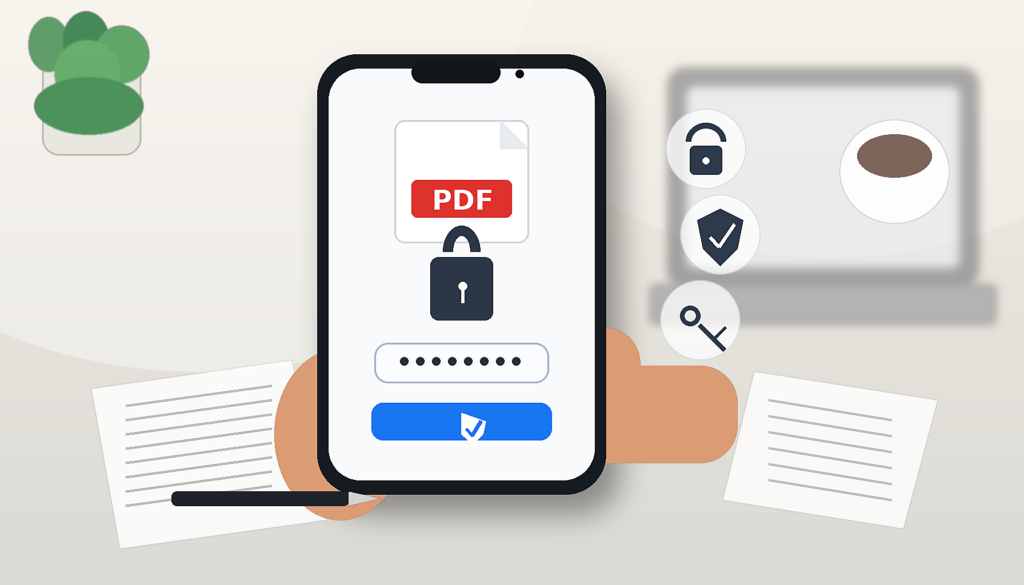
How to protect a PDF with a password: simple methods from smartphone and computer
Protecting a PDF with a password is useful when you need to send, store, or share a document containing personal data, signatures, forms, receipts, or confidential information. In this guide, we will see how to do it from both smartphones and computers, which tools to use, and what limitations to consider.
Protecting a PDF with a password is useful when you need to send, store, or share a document that contains personal data, signatures, forms, receipts, contracts, work documents, or confidential information. PDF is a very practical format, but this does not mean it is automatically secure: if the file is forwarded to the wrong person or uploaded to an unsuitable place, the information inside can be read by anyone who can open it.
Summary
Setting a password can add a level of protection, especially when the document contains data you do not want to be accessible to everyone. Protection can be used to prevent opening the file, or to limit certain operations such as editing, printing, or copying the content. However, these two things are not identical and should be distinguished.
In this guide, we look at how to protect a PDF with a password from smartphone and computer, which tools to use, when simple protection is enough, what limitations to consider, and how to share the file more securely.
Useful note: a password does not automatically make a PDF invulnerable. Security depends on the quality of the password, the tool used, the type of protection applied, and how you share the file. For very sensitive documents, always use reliable tools and secure channels.
When it makes sense to protect a PDF with a password
It makes sense to protect a PDF with a password when the document contains information that should not be readable by anyone. Not all files require the same level of protection, but some documents deserve more attention than others.
It can be useful to protect:
documents with personal data;
completed forms;
signed documents;
receipts and invoices;
contracts and quotes;
tax documents;
certificates;
medical documents;
confidential files;
company or professional files.
Protection is especially important when the PDF needs to be sent via email, uploaded to a portal, stored in the cloud, or shared with multiple people.
Opening password and restrictions: what is the difference?
When talking about protecting a PDF with a password, two different functions are often confused: the password to open the document and the password to limit some actions. Adobe indeed distinguishes the protection that requires a password to open the PDF from the settings that can limit editing, printing, or copying content.
The opening password is used to prevent access to the document: anyone who does not know the password should not be able to open the file. It is the most immediate protection when you want to prevent the PDF from being read by unauthorized people.
The restrictions on editing, printing, or copying are instead used to limit what someone who already opened the document can do. For example, you can try to prevent edits, printing, or copying of text. These restrictions are useful but should not be confused with an absolute guarantee against any misuse of the file. In practice:
opening password: protects access to the PDF;
permissions or editing password: limits certain actions on the document;
encryption: technically protects the file content, but it depends on the tool and settings used;
secure sharing: remains essential even when the PDF has a password.
How to choose a secure password for a PDF
Before even considering the tool to use, the password matters. A weak password makes protection much less effective, especially if it contains common words, names, birth dates, or easy-to-guess sequences. A good password should be:
long;
unpredictable;
different from those used for other accounts;
composed of letters, numbers, and symbols;
not linked to the filename or recipient;
stored securely.
Avoid passwords like “123456”, “password”, “document”, “invoice2026”, your name, the client’s name, or the document date. These are easy to try and do not offer adequate protection.
How to protect a PDF with a password from a computer
From a computer, you often have more options than on a smartphone. You can use PDF software, system-integrated tools, export functions from writing programs, or online services. The choice depends on where the document is located and the level of protection you need.
In general, the workflow is this:
open the PDF with a compatible tool;
look for a function like Protect, Security, Encrypt, Password, or Permissions;
choose whether to set a password for opening or to restrict editing and printing;
enter a strong password;
save a protected copy of the document;
close the file and reopen it to verify that the password is requested.
Before sending the PDF, always do a test: open the file from another device or another app and check that the protection actually works.
How to protect a PDF with Adobe Acrobat
Adobe Acrobat is one of the most used tools to protect PDFs. Adobe documentation states that Acrobat allows adding passwords to PDFs to control who can open the document and to limit operations such as editing, printing, or copying. The general workflow can be this:
open the PDF in Adobe Acrobat;
go to the PDF protection tools;
choose whether to set a password to open the document or permission restrictions;
enter the password;
confirm the settings;
save a new copy of the protected PDF;
reopen the file to verify that protection is active.
Some functions may depend on the version of Acrobat, the plan used, and the device. Before using this solution for important documents, always check the options actually available in your account.
How to protect a PDF with a password on Mac
On Mac, you can protect a PDF using Preview, the built-in app for opening and managing images and PDFs. Apple states that Preview allows you to protect a PDF with a password, so anyone opening the document must enter it to view it. The process may vary slightly depending on the macOS version, but generally, you can proceed as follows:
open the PDF with Preview;
use the export or duplicate function of the document;
enable the option to protect or encrypt the file;
enter a password;
save the new protected PDF;
close and reopen the file to verify that the password is required.
It is preferable to save a protected copy instead of immediately overwriting the original file, so you can also keep the unprotected version in a secure folder.
How to protect a PDF from Word or Microsoft 365
If the document is created in Word, you can protect it before sending it as a PDF. Microsoft explains that during export or saving as PDF, Word can show the option to encrypt the PDF document with a password, so anyone opening the file must enter it. This method is useful when you are creating the document from scratch and have not yet generated the final PDF.
open the document in Word;
choose the function to export or save as PDF;
enter the export options, if available;
enable the option to encrypt the PDF with a password;
enter and confirm the password;
save the PDF;
open the generated file to verify that the password is requested.
If you already have a ready PDF, Word might not be the best tool to protect it: in that case, it’s better to use a PDF editor, Preview on Mac, or a dedicated service.
How to protect a PDF with a password from a smartphone
From a smartphone, you can protect a PDF, but the available functions depend heavily on the app used. Some tools only allow reading, filling out, or signing; others also offer password protection, often in premium versions or in connected online tools. A general workflow can be this:
open the PDF in the chosen app;
look for a section called Protect, Security, Password, or Encrypt;
choose whether to set an opening password;
enter a strong password;
save a protected copy;
reopen the file to verify that the password works;
share the protected PDF carefully.
If the app you use does not offer this function, you can save the file and protect it from a computer or use a reliable online tool, but carefully evaluating the document’s privacy.
Protecting PDFs online: when it is convenient and when to avoid it
Many online services allow you to upload a PDF, set a password, and download the protected file. It’s a convenient solution, especially when you don’t want to install programs or are working from a smartphone. However, you have to evaluate the type of document. If the PDF contains personal data, health information, contracts, tax documents, or confidential company data, uploading it to an online service is not always the best choice. It can make sense to use an online tool when:
the document does not contain sensitive data;
the service is well-known and reliable;
you have read the file management terms;
the document is not confidential;
you need to perform a quick operation and have no local alternatives.
It’s better to avoid random online tools when the PDF contains identity documents, bank data, signatures, certificates, important contracts, or personal information of other people.
Before protecting the PDF: create, fill out, or sign it
The password should be one of the last steps in the process. It’s better to first create the PDF, check it, fill it in, sign it if needed, and only then protect it. This way, you avoid having to unlock or recreate the file for every change.
Protecting the PDF is important, but also how you share the password matters. A very common mistake is sending the protected file and the password in the same message or email. This way, if someone accesses that message, they find both the document and the key to open it. It’s better to separate the channels:
send the PDF via email and share the password by phone;
send the PDF via cloud and the password via a separate message;
use a temporary password just for that document;
do not write the password in the email subject;
do not use predictable passwords like names or dates;
make sure the recipient is the correct one.
For highly confidential documents, consider sharing tools with controlled access, link expiration, or recipient authentication.
Protecting a PDF stored in the cloud
If the PDF is saved on Google Drive, iCloud Drive, OneDrive, Dropbox, or other cloud services, the file password does not replace sharing settings. You must also check who can access the folder, link, or account. Before storing or sharing the PDF in the cloud, verify:
who can open the file;
whether the link is public or restricted;
if the folder is shared with other people;
if the recipient can download, copy, or forward the file;
if your cloud account uses two-factor authentication;
if the document must remain online or can be deleted after use.
A password on the PDF adds protection, but does not fix overly permissive sharing settings.
Table: which method to use to protect a PDF
The choice of method depends on the device, the file type, and the required security level.
Situation
Recommended method
When to use it
PDF already prepared on computer
PDF editor or Acrobat
When you need to set passwords or permissions on the file
PDF on Mac
Preview
When you want to protect a PDF without installing additional apps
Document created in Word
PDF export with password
When the file originates from a Word document
PDF on smartphone
PDF app with protection feature
When you want to work directly from Android or iPhone
Non-sensitive document
Trusted online tool
When you need a quick solution
Confidential document
Local tool and strong password
When the file contains personal data or sensitive information
PDF shared in cloud
Password + permission control
When the file stays on Drive, iCloud, OneDrive, or Dropbox
Mistakes to avoid when protecting a PDF with a password
Protecting a PDF is simple, but some mistakes can greatly reduce the effectiveness of the protection.
Using a weak password: avoid common words, names, dates, and easy sequences.
Sending files and passwords together: it’s better to use separate channels.
Not verifying the file: always reopen the PDF to check that the password is required.
Overwriting the original without a copy: keep an unprotected version in a safe place, if needed.
Uploading sensitive documents to random sites: always consider privacy and reliability.
Confusing permissions and opening protection: restricting printing or copying is not the same as preventing opening.
Forgetting the password: you could lose access to the file.
Sharing public cloud links: the password does not replace correct permissions.
Privacy: what to check before protecting and sending a PDF
Before sending a protected PDF, check what the document really contains. A password serves to limit access, but does not remove unnecessary data, useless pages, or information that shouldn’t be shared. Especially check:
personal data;
addresses;
signatures;
tax codes or identification numbers;
bank details;
health information;
client or supplier data;
internal notes;
unnecessary pages;
metadata or file names that are too descriptive.
For sensitive documents, send only the necessary pages and use a clear but not overly revealing file name.
In summary
Protecting a PDF with a password is a good habit when the document contains personal data, signatures, forms, contracts, or confidential information. You can do this on a computer using tools like Acrobat, Preview on Mac, or export functions from Word, and on a smartphone using compatible PDF apps or reliable online tools. The most important protection is the open password, as it restricts access to the document. Restrictions on editing, printing, or copying can be useful but should not be considered an absolute guarantee. It also matters how you choose the password, save the file, and communicate it to the recipient. Before sending a protected PDF, verify that the password works, check that the document contains only the necessary information, and never send the file and password in the same message.
Frequently Asked Questions
Can I protect a PDF with a password for free?
Yes, in many cases you can do this for free using built-in tools, functions available on Mac, export options, or online services. However, some advanced features might require paid software or subscriptions.
How do I protect a PDF with a password on Mac?
On Mac, you can use Preview: open the PDF, use the export or duplicate options, enable password protection, and save a protected copy of the document.
Can I protect a PDF with a password from a smartphone?
Yes, but it depends on the app used. Some PDF apps allow you to set a password directly from Android or iPhone, while others only allow reading, filling out forms, or signing.
What is the difference between an open password and an editing password?
The open password prevents access to the PDF. Restrictions on editing, printing, or copying limit certain actions after the document is opened.
Is it safe to use online services to protect PDFs?
It depends on the type of document and the reliability of the service. For non-sensitive files, it can be a convenient solution; for documents with personal data, signatures, or confidential information, it’s better to use local tools or very reliable services.
How should I send the PDF password?
It’s better not to send the file and password in the same message. You can send the PDF via email and communicate the password through another channel, such as phone or a separate message.
Does a password always prevent editing a PDF?
No. It depends on the type of protection set. An open password protects access; to limit editing, printing, or copying, specific document permission settings are required.
What happens if I forget the PDF password?
You might no longer be able to open the protected file. Therefore, it is important to keep the password safely and, if necessary, keep an original copy in a secure location.
Per fornire le migliori esperienze, utilizziamo tecnologie come i cookie per memorizzare e/o accedere alle informazioni del dispositivo. Il consenso a queste tecnologie ci permetterà di elaborare dati come il comportamento di navigazione o ID unici su questo sito. Non acconsentire o ritirare il consenso può influire negativamente su alcune caratteristiche e funzioni.
Funzionale
Always active
L'archiviazione tecnica o l'accesso sono strettamente necessari al fine legittimo di consentire l'uso di un servizio specifico esplicitamente richiesto dall'abbonato o dall'utente, o al solo scopo di effettuare la trasmissione di una comunicazione su una rete di comunicazione elettronica.
Preferenze
L'archiviazione tecnica o l'accesso sono necessari per lo scopo legittimo di memorizzare le preferenze che non sono richieste dall'abbonato o dall'utente.
Statistiche
L'archiviazione tecnica o l'accesso che viene utilizzato esclusivamente per scopi statistici.L'archiviazione tecnica o l'accesso che viene utilizzato esclusivamente per scopi statistici anonimi. Senza un mandato di comparizione, una conformità volontaria da parte del vostro Fornitore di Servizi Internet, o ulteriori registrazioni da parte di terzi, le informazioni memorizzate o recuperate per questo scopo da sole non possono di solito essere utilizzate per l'identificazione.
Marketing
L'archiviazione tecnica o l'accesso sono necessari per creare profili di utenti per inviare pubblicità, o per tracciare l'utente su un sito web o su diversi siti web per scopi di marketing simili.